
≈ 8 min read
Usage
Access to files in Claritalk
In Claritalk, you only see a file if you are linked to it yourself, either directly or through a team. Anyone who has access to a file can also see all conversations within it. A synchronisation from your practice software adds access, but never removes it.
This document explains who can see and do what, how you grant and revoke access, and what linking to your practice software changes.
Basic concepts
Five concepts together determine who sees what.
| Concept | What it is |
|---|---|
| Organisation | Your office in Claritalk. Data from another organisation is never visible, regardless of the settings. |
| User | An employee with their own Claritalk account within your organisation. |
| Team | A group of users, for example a department. A file can be shared with an entire team. |
| File | The folder of a client or project. A file bundles conversations, tasks, business information and links with your practice software. |
| Conversation | A recorded conversation, meeting or phone call. A conversation belongs to at most one file. |
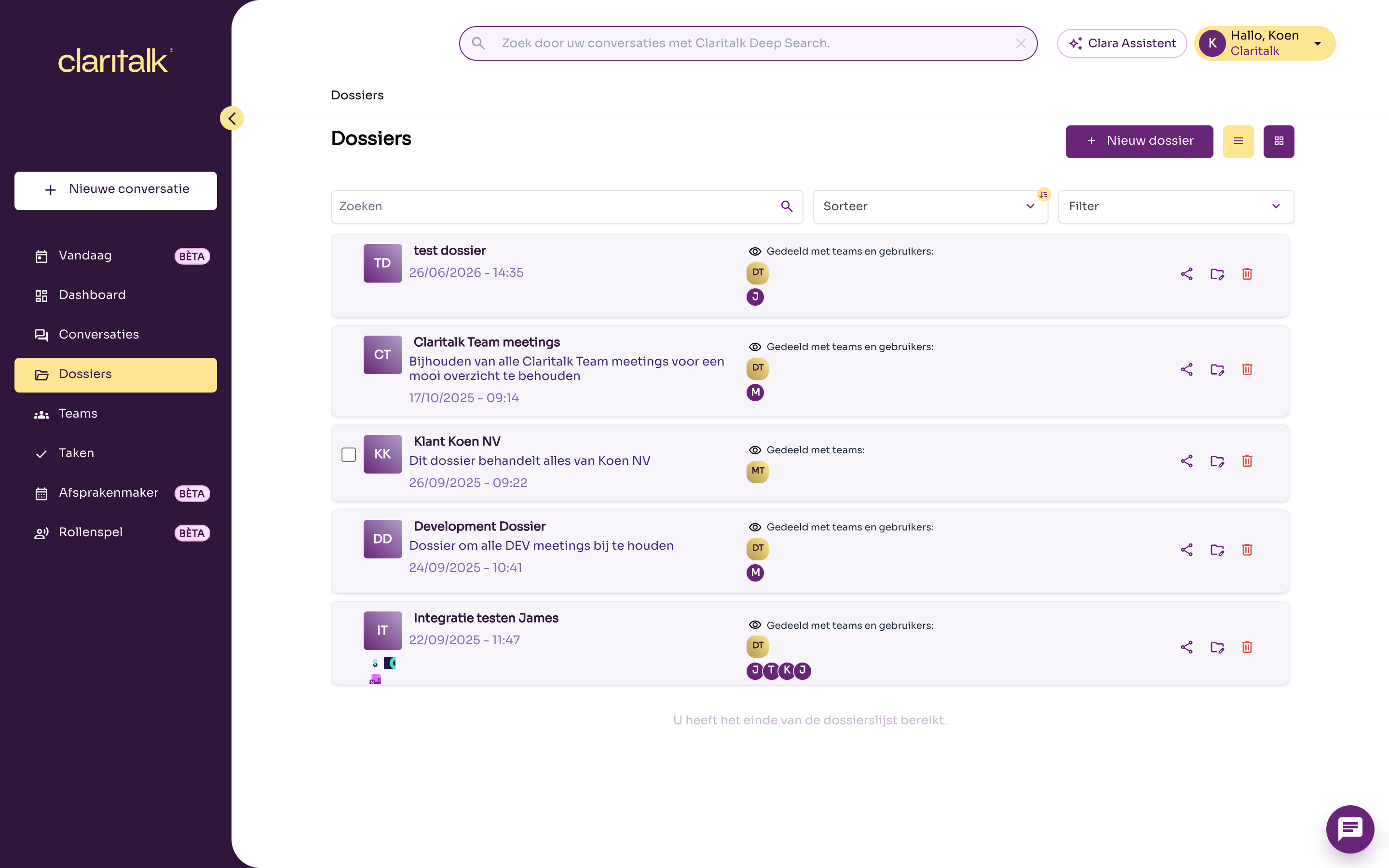
In the Files overview, you can see which teams and users each file is shared with.
Roles and permissions
For each file, someone is an owner, a member, or has no access. Owners manage the file, members use it.
| What | Owner | Member (direct) | Member via a team | No access |
|---|---|---|---|---|
| View file and conversations | Yes | Yes | Yes | No |
| Ask Clara questions about the file | Yes | Yes | Yes | No |
| Add conversations to the file | Yes | Yes | Yes | No |
| Change title, description and link with practice software | Yes | No | No | No |
| Share file with users and teams | Yes | No | No | No |
| Remove other members or make them owner | Yes | No | No | No |
| Remove yourself from the file | Yes, if an owner remains | Yes | No, leave the team instead | No |
| Delete file | Yes | No | No | No |
Some fixed rules:
- A file always has at least one owner and at least one member or team.
- Whoever creates a file automatically becomes the owner.
- Anyone you add becomes a member. An owner can then make a member an owner.
And the organisation administrator?
An organisation administrator does NOT automatically see all files in the regular Claritalk environment. The same rule applies: only files to which the administrator is linked. Via the administration environment, an administrator can view, create, change and delete all files in the organisation, and add and remove members or teams. Deleting a file there requires confirmation with a password.
How someone gains access
There are four ways to gain access to a file:
- Create the file yourself. You become the owner.
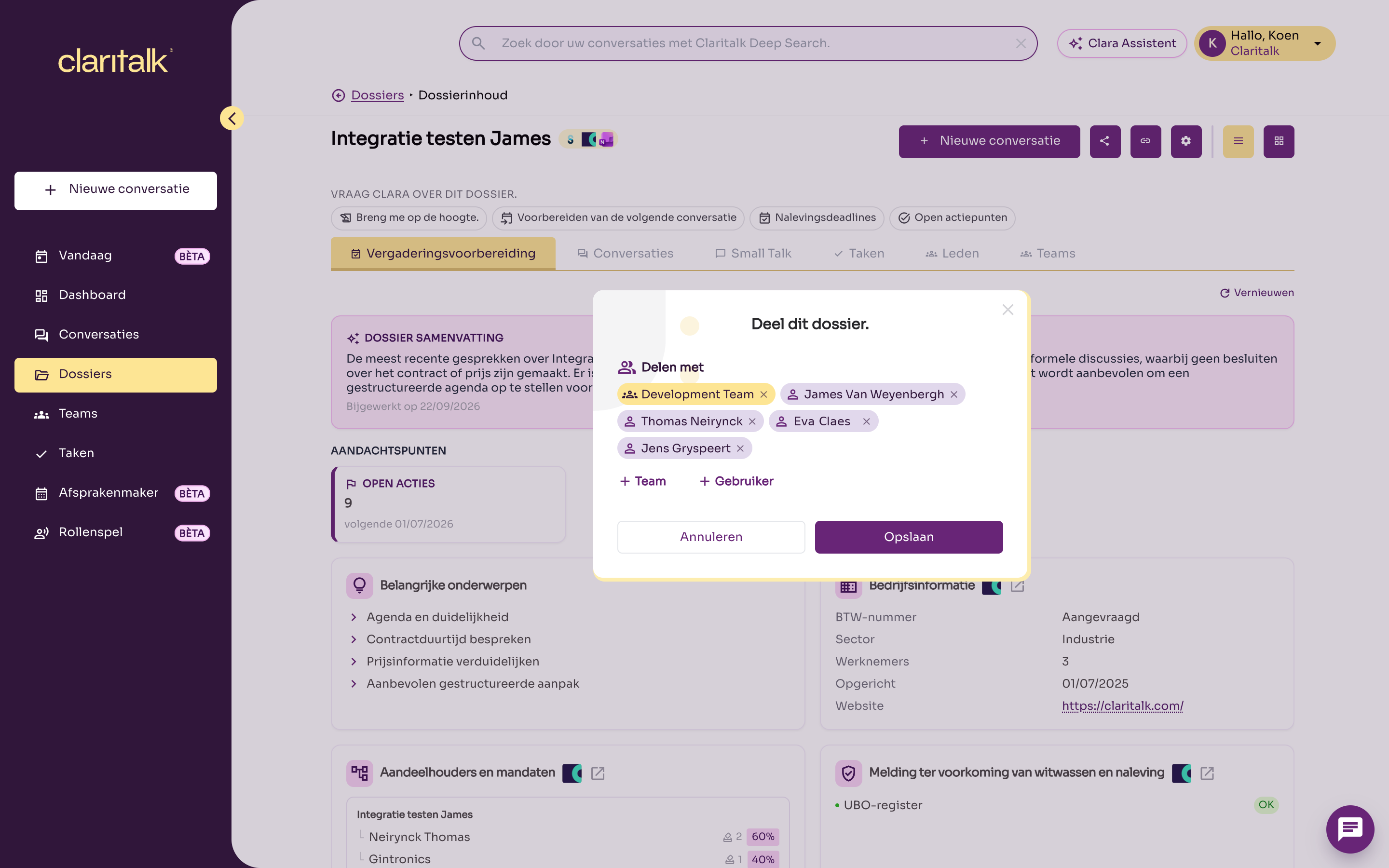
- Have it shared by an owner. Open the file and click the share icon. Add a User or a Team and click Save. The new user receives an email.
- Be a member of a shared team. If a team is linked to the file, all members of that team have access. This only applies to the members of that team, not to members of a parent or child team.
- A synchronisation with your practice software. See the next section.
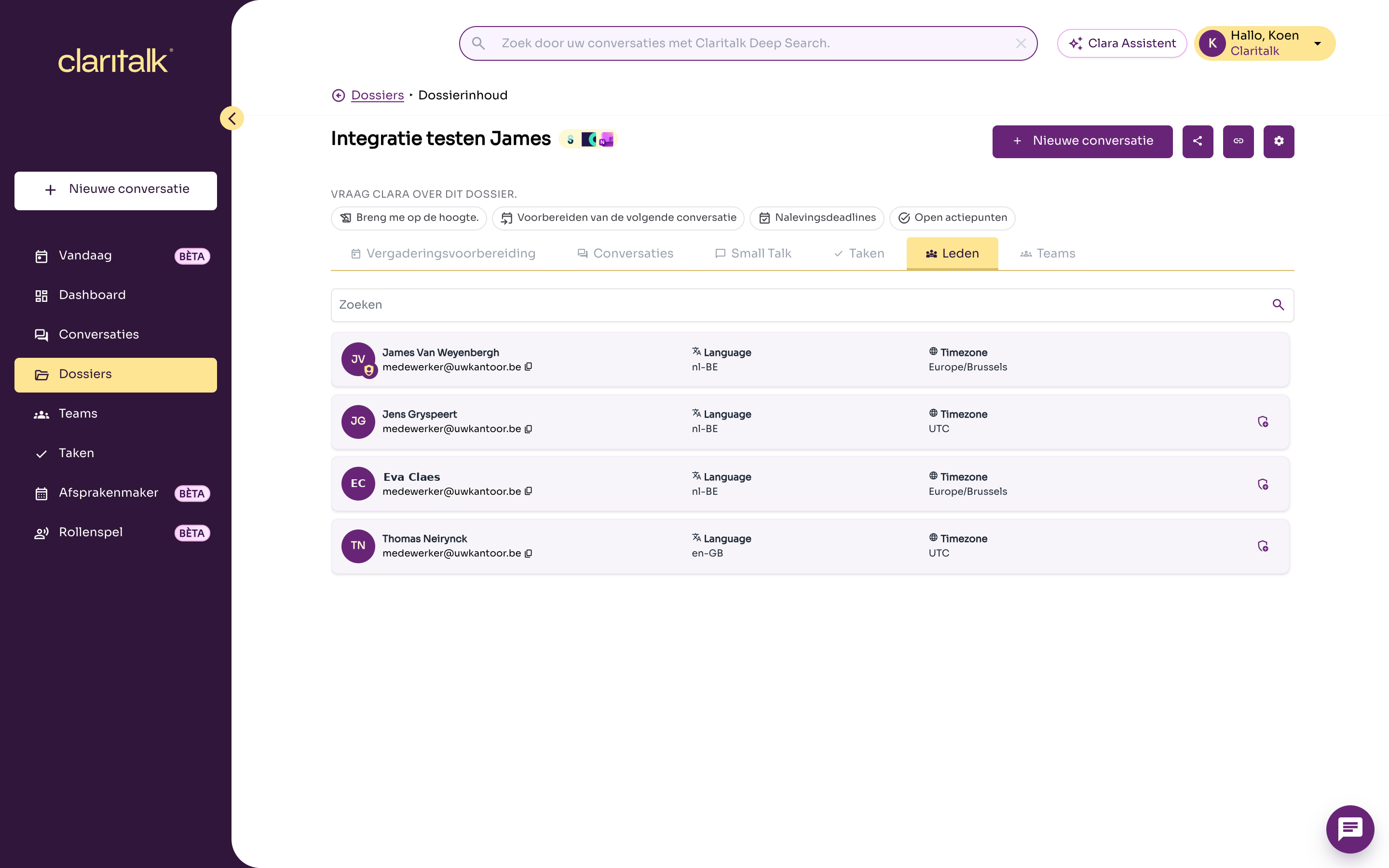
Under the Members tab of a file, you see who has direct access. Owners have a badge next to their initials. Teams with access are listed under the Teams tab.
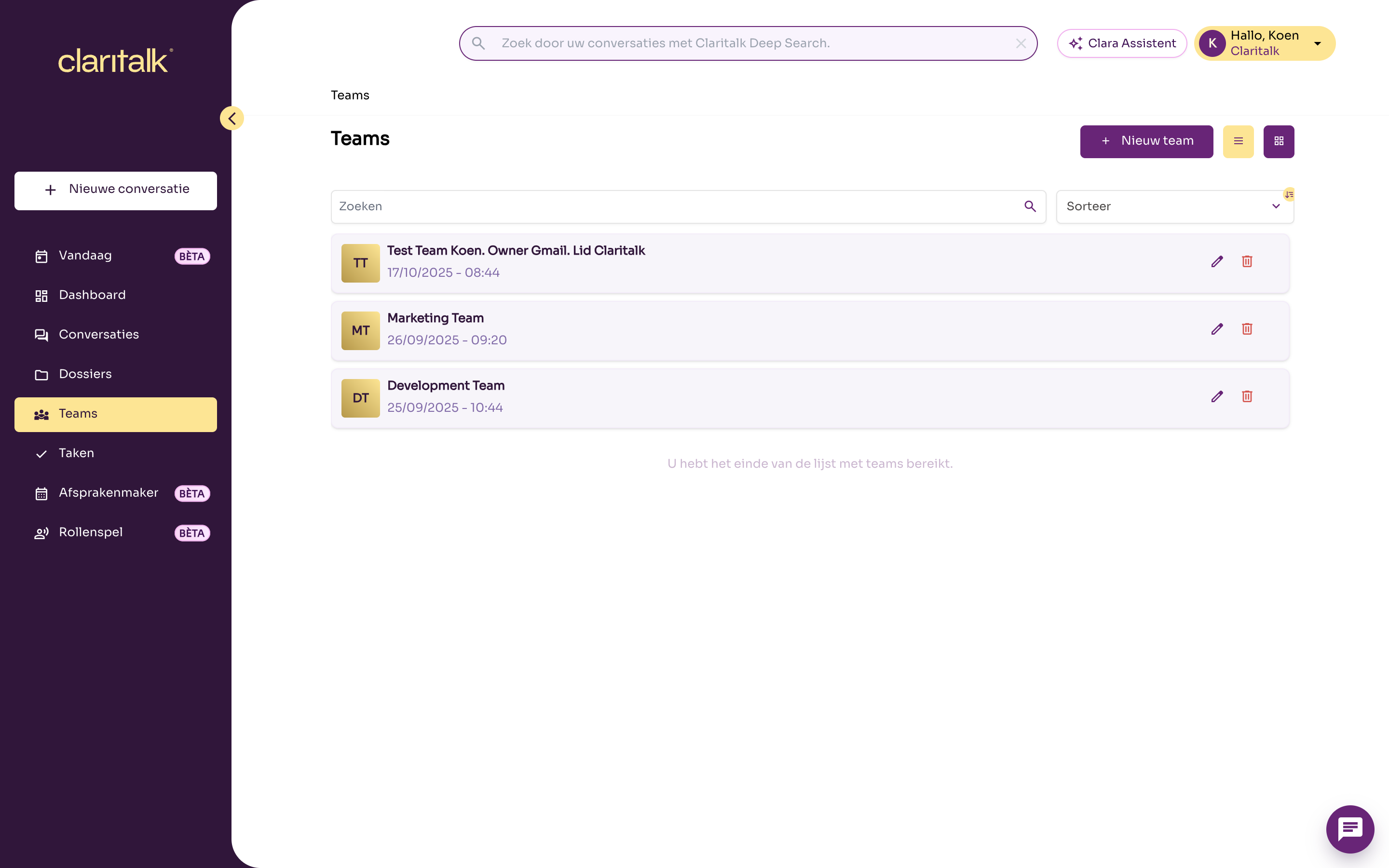
You manage teams via Teams in the menu. Anyone you add to a team immediately gets access to all files shared with that team.
Revoking access
Access is checked again with each action. If an owner removes someone from the file, or someone leaves a shared team, access is immediately gone. The person involved does not receive an email about this.
If someone has access through a team, it is not enough to remove that person from the file. Instead, remove the person from the team or unlink the team from the file.
Synchronisation with your practice software
We will use AdminPulse as an example. The other packages that synchronise files work the same way; where they differ, that is stated in the Other links table at the bottom of this section.
A synchronisation with AdminPulse creates files and keeps their data up to date. It gives the user who made the link access, but never removes access and does not affect manually set access.
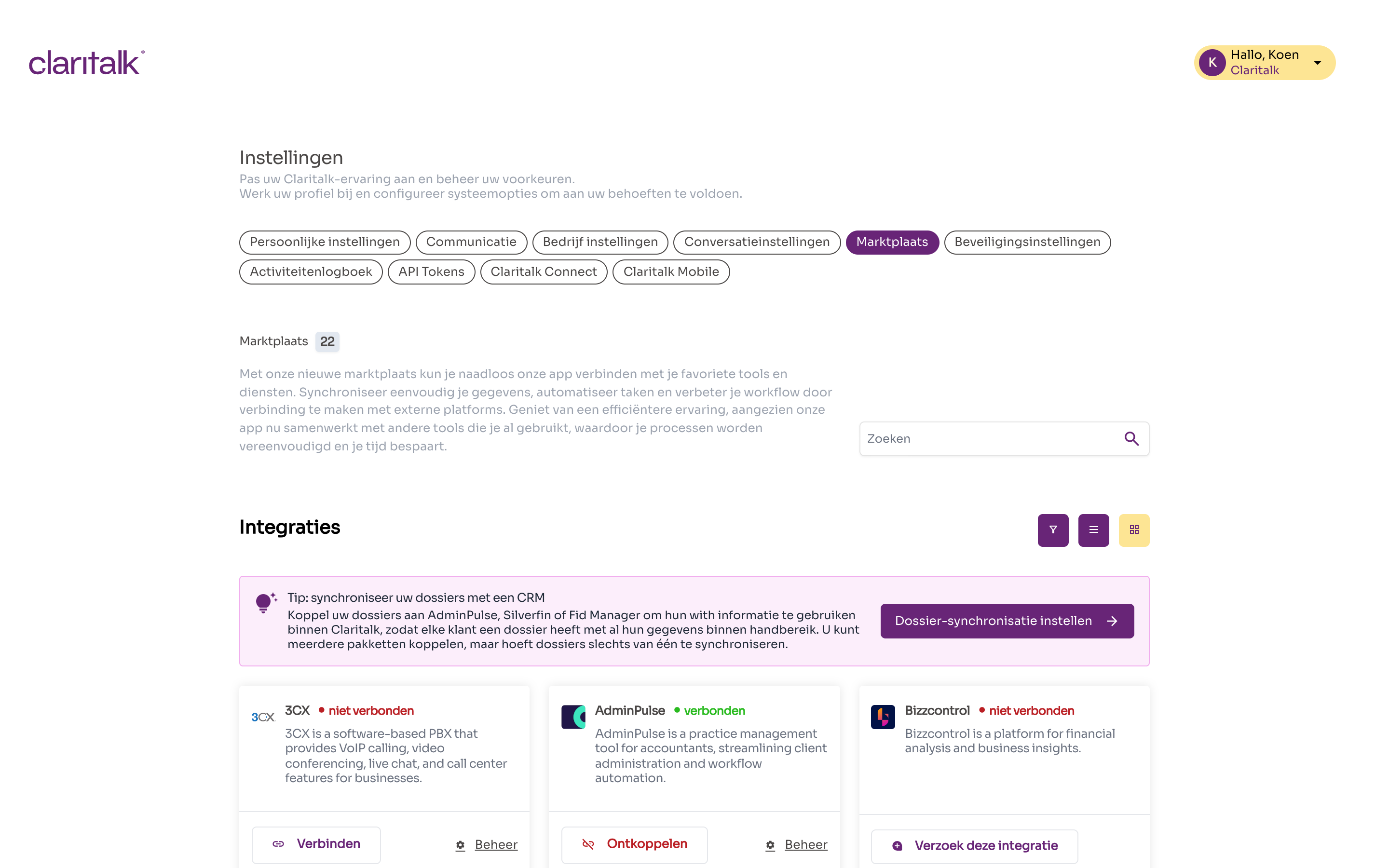
When does Claritalk synchronise?
- The link with AdminPulse is personal: each user connects their own AdminPulse account via Settings > Marketplace.
- The synchronisation runs automatically every night at 02:00. You can also start it manually yourself.
- Claritalk retrieves the relationships that the AdminPulse account of that user can see.
How Claritalk links a relationship to a file
For each relationship from AdminPulse, Claritalk looks for a matching file within your organisation, in this order:
- A file already linked to this AdminPulse relationship.
- A file with the same VAT number, for example from another link or manually entered.
- A file with the same name. Claritalk does not automatically merge in this case, but proposes a merge that a user must approve.
- No matching file: Claritalk creates a new file.
Claritalk transfers the name, VAT number, phone numbers, email addresses and website. Contact details that are already known are not deleted if AdminPulse does not include them during a synchronisation.
What the synchronisation does with access
| Situation | Effect on access |
|---|---|
| A new file is created | The user who synchronises becomes owner. No one else has access unless the file is shared. |
| A file already exists, including one a colleague created manually | The user who synchronises becomes member if they did not already have access. No email is sent. |
| Someone is responsible or employee of a customer in AdminPulse | This has no effect on access in Claritalk. |
| You remove someone in AdminPulse or change the responsible person | Access in Claritalk remains unchanged. Adjust it yourself in Claritalk. |
| You have manually shared a file or removed a member | The synchronisation does not overwrite this. It only adds the synchronising user. |
| A relationship is archived or deleted in AdminPulse | The file in Claritalk remains, with its conversations. |
| You delete a file in Claritalk that still exists in AdminPulse | At the next synchronisation, Claritalk creates a new (empty) file. |
| Two files are merged | Conversations, users and teams go to the remaining file. Transferred users become members, even if they were owners. |
Practical: preferably have one person or a limited number of people do the synchronisation, and then share the files with the correct teams. This way you control who has access, regardless of who made the link.
Other links
| Link | Synchronises files? | Effect on access |
|---|---|---|
| Silverfin | Yes | Like AdminPulse: only the user who synchronises gets access. |
| FID-Manager | Yes | The link applies to the entire organisation. All active users of the organisation become members of each synchronised file. |
| Brokercloud | No | You manually link a file to a relationship. |
| Zoho CRM, Odoo | No | No files are created. |
Access to conversations
Anyone who has access to a file sees all conversations in that file. There is no separate "private" setting for a conversation within a file.
You see a conversation if at least one of these applies:
- you recorded the conversation yourself;
- the conversation is in a file you have access to;
- the conversation was shared with you personally;
- the conversation was shared with a team you are a member of.
You never see conversations from another organisation.
| What | Who |
|---|---|
| View a conversation | Everyone who may see it according to the above rules |
| Edit a conversation | Everyone in your organisation who may see the conversation |
| Share a conversation personally with someone | Only whoever recorded the conversation |
| Delete a conversation | Only whoever recorded the conversation |
| Place a conversation in a file | Everyone who has access to that file |
Tip: if you want to keep a conversation limited, do not put it in a file shared with a large team. Instead, share it personally with the right colleagues.
Frequently asked questions
What happens if an employee leaves the office? If the user is removed from the organisation, that person disappears from all files. If the user was the only owner of a file, that file is deleted, also for the other members. Teams of which the user was the owner are also deleted. When deleting, choose transfer data to another user: that colleague then takes over the files with the same role. A deactivated user can no longer log in.
What happens to conversations when a file is deleted? The conversations remain, but are no longer in a file. The person who recorded the conversation or received it personally still sees them. If there is still another owner, "delete" only removes you from the file.
Can I archive a file? No, that is not currently possible. A file exists or is deleted.
Does Clara see more than I do? No. The Clara Assistant, the search function and the integration with AI assistants (MCP) work with your own permissions. They only see the files and conversations you see yourself.
And the Claritalk API? With a personal API token, the same rules apply as in the app. A service account, which an organisation administrator can create, does see all files in the organisation. Only give such a service account to applications you trust.
A colleague does not see a file. What do I check?
- Is the colleague listed under Members of the file, or in a team under Teams?
- Is the colleague directly in that team, not only in a parent team?
- Has the colleague done an AdminPulse synchronisation? That only gives access to the synchronising user, not to the responsible person from AdminPulse.