
≈ 4 min read
Overview
Claritalk Use Cases
Claritalk supports not only remote meetings, but also in-person and hybrid meetings, phone calls via VOIP, and meetings in internet-free zones. These scenarios are made possible by the web interface, Claritalk Connect, apps (in development), and bots (in development). Below you'll find how each scenario works in practice.
Scenario 1A — In-person meetings without meeting soundbar
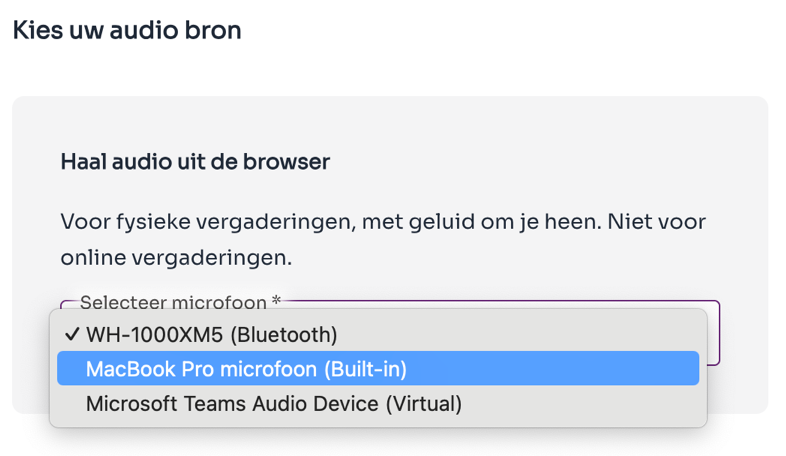

In in-person meetings, all participants are present in the same room. We use a locally available microphone: a table microphone or possibly the built-in microphone of the laptop.
- The microphone must be properly connected to the PC and visible as an input device within Claritalk.
- No further configuration required beyond the standard microphone selection in the operating system.
- Claritalk Connect is not required in this scenario, but will be activated if installed.
- A table microphone is recommended for accurate transcription.
Scenario 1B — In-person meetings with meeting soundbar

Similar to scenario 1A, but with the meeting soundbar as microphone, connected to the PC.
- Connect the soundbar via USB or Bluetooth (if applicable).
- Select the soundbar as input/output in the operating system.
- Claritalk Connect is not required, but will be activated if installed.
The above not working in your configuration? Then don't use the soundbar and follow scenario 1A.
Scenario 2 — Online meetings

In online meetings, all participants are digitally present (via Teams, Zoom, etc.) in one virtual space.
- A headset, built-in laptop microphone, or USB microphone is used, selected as input within Claritalk.
- For transcription, Claritalk Connect is required: it forms the connection layer between the external audio (what others are saying) and Claritalk.
Scenario 3 — Hybrid meetings (in-person + online)

A combination of in-person and online participants: some people are physically together, while others join remotely.
- The local room needs a suitable microphone that captures the entire table or space: a soundbar, table microphone, or other professional setup.
- The audio from that microphone must be available as input on the PC, and the speaker as output on the same PC.
Scenario 4 — Meetings without (stable) internet connection (in development)
Useful for surveyors, or when you don't have a generous data plan and can't use local wifi.
- Download the Claritalk app from the Play Store (Android) or App Store (iPhone).
Scenario 5 — Calls via Microsoft Teams telephony
Useful for those who want to analyze support calls for frequently recurring questions and provided solutions.
- Link your Microsoft account so Claritalk can be active for each phone call.
- Claritalk Connect is required.
- Microphone selection happens automatically via the active microphone within Windows.
Receiving back-to-back calls? Keep in mind that on average 3 seconds are needed between calls, otherwise they will be merged.
Scenario 6 — Automatic capture of Teams meetings via Claritalk Connect
Similar to scenario 5, but for Teams meetings.
Here too, on average 3 seconds are needed between meetings. If you let a meeting run over and 'join' the next one immediately via the pop-up, both meetings will be merged.
One meeting at a time
Keep in mind that you can only start one meeting simultaneously. Claritalk doesn't enforce this: if you use automatic ways to start meetings, such as Claritalk Connect with Teams integration (scenarios 5 and 6), do not also start a meeting manually. In the meeting list you can see which meetings are active.