
≈ 10 min read
Resolve Error Message
Approval from your administrator required
You want to connect your Microsoft 365 calendar to Claritalk, but Microsoft is first asking for approval from your IT administrator. Nothing is broken: this is a setting in the Microsoft environment of your own organization. Below you'll find what you can do yourself, and what your administrator can arrange in two minutes.
Do you recognize this screen?
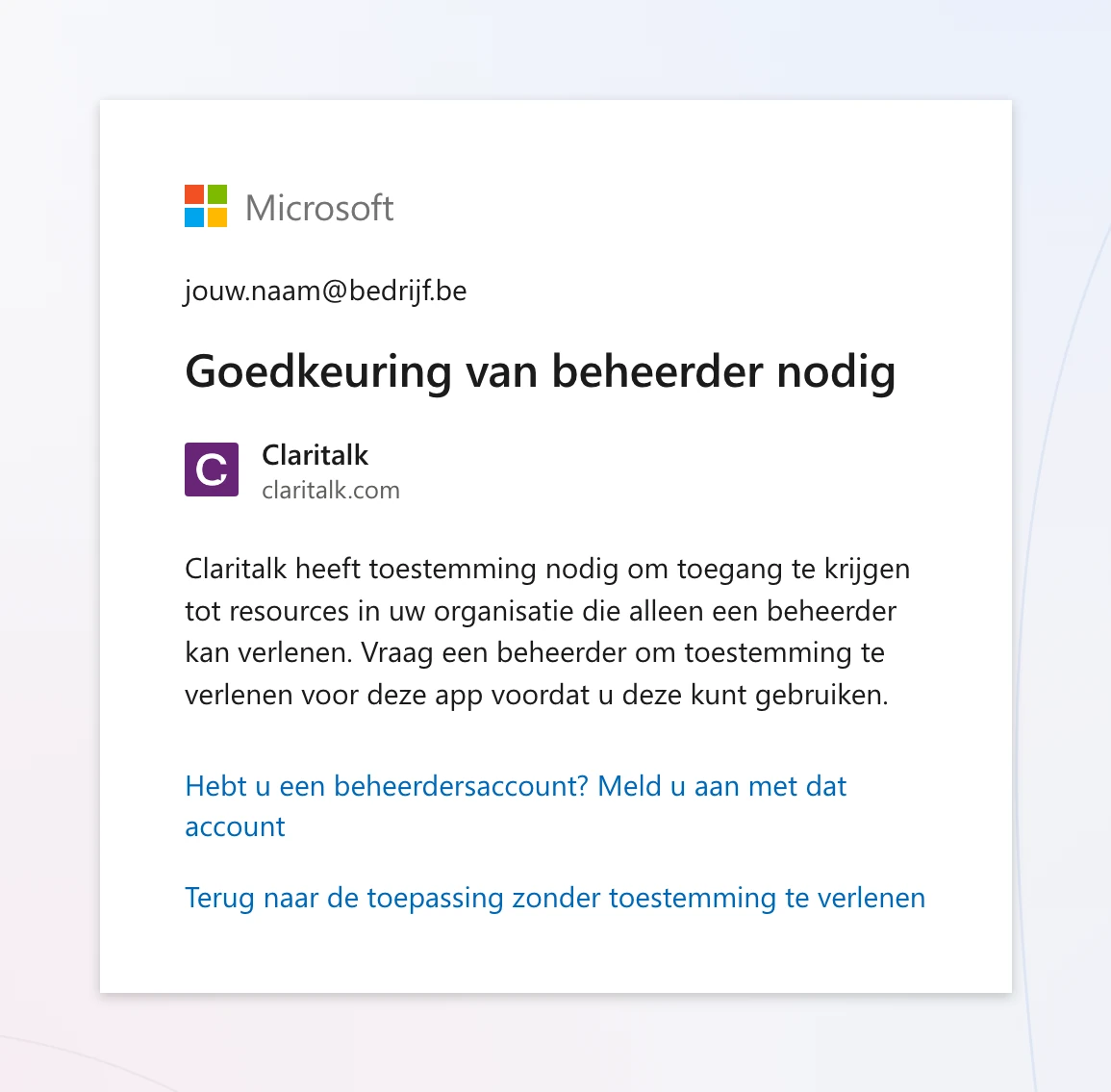
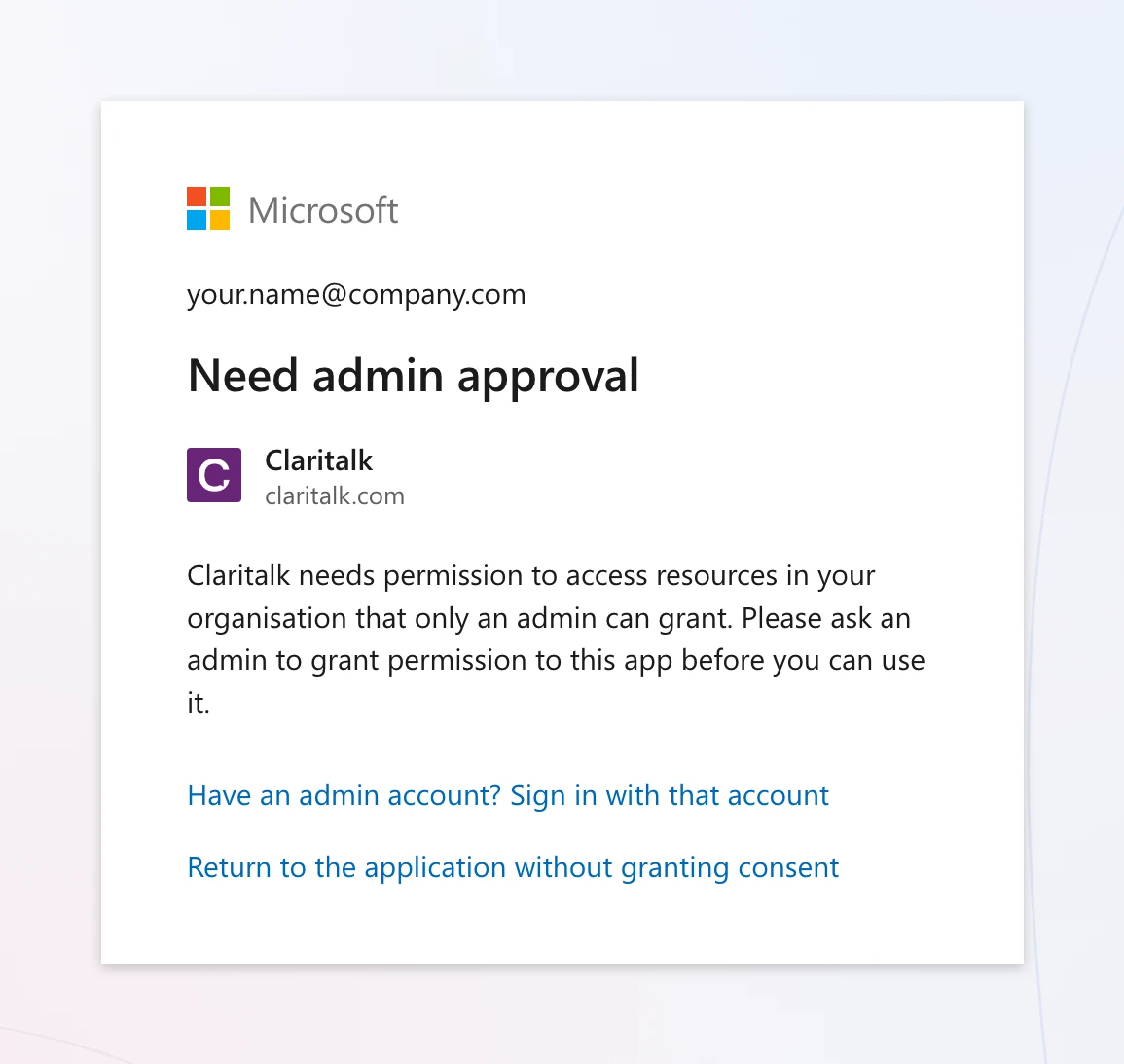
Sometimes you see an error code instead, such as AADSTS90094, AADSTS65001 or AADSTS900941. That's the same cause.
What is your role?
Why is this happening?
Claritalk connects to your calendar via Microsoft Graph. When you connect, Microsoft asks you for permission for a number of rights — just like with any other app you attach to your work account.
In Microsoft Entra ID (the former Azure AD), your organization determines whether users are allowed to give that permission themselves. There are three possible settings:
| Setting in Entra ID | Effect for Claritalk |
|---|---|
| Do not allow user consent Do not allow user consent |
Every app needs an administrator. This is the cause of the screen above. |
| Allow user consent for apps from verified publishers, for selected permissions Verified publishers, selected permissions |
Users are allowed to grant consent themselves for permissions with limited impact. Works, provided the calendar permissions are in the selection. |
| Let Microsoft manage consent settings Let Microsoft manage consent settings |
Microsoft automatically follows current guidelines. Works in most cases. |
This is not an error in Claritalk and not a problem with your account. As long as the first setting is active, every user in your organization will see this screen when connecting — regardless of which app.
Which permissions does Claritalk request?
Only what is needed to make your calendar work. These are all delegated permissions: Claritalk works exclusively on behalf of the logged-in user and never sees more than that user already sees themselves. No organization-level permissions (application permissions) are requested.
| Permission | What Claritalk uses it for |
|---|---|
| User.Read | Read your name, email address and time zone so that meetings appear in the correct time zone and are attached to the correct Claritalk account. |
| Calendars.ReadWrite | Read your calendar items to prepare conversations, and create or update items when you schedule or record a meeting from Claritalk. Also needed to track changes to your calendar immediately rather than at the next synchronization. |
| offline_access | Keep the connection active so you don't have to log in again every day. |
| openid | Securely link your Microsoft identity to your Claritalk user. |
| Mail.Read only with email connection |
Read-only permissions, and only if you also use email connection for conversation preparation. Claritalk cannot send, modify or delete email. |
No access is requested to SharePoint, OneDrive, Teams chats, or your organization's user directory.
For the user: how to resolve this
-
First, check which account you are logged in with
At the top of the approval screen is an email address. Is there a private account or the account of another organization? Then log out of Microsoft, or use a private window in your browser, and try again with your work account.
-
Request approval if the button is there
Some organizations turn on Microsoft's request process. In that case you'll see a field for a justification and a button to send the request on the screen. Briefly explain what you use Claritalk for and send — your administrator will receive the request directly.
-
No button? Send the email below to your IT department
Without a request process, the screen ends at “Return to app” and nothing else happens. Use the ready-to-send email at the bottom of this article. It specifies exactly what your administrator needs to do and which permissions are involved.
-
Connect again once you have approval
After your administrator approves, go to Profile › Marketplace in Claritalk and click connect again for Microsoft Outlook 365 Calendar. The approval screen will no longer appear and your calendar will show up within a few minutes.
Don't keep trying to connect repeatedly and don't create a second Claritalk account. The screen will only disappear after an administrator has granted consent — trying again won't change that.
For the IT administrator: three routes
You need the role of Global Administrator, Privileged Role Administrator or Cloud Application Administrator. Choose one of the three routes below — they all lead to a working connection.
One-time consent for the entire organization
Fastest · ± 2 minutesYou grant consent once, after which no one in the organization will see the screen again. Your tenant settings remain unchanged.
Log in to Claritalk in a private window with your administrator account.
Open the Marketplace in your Claritalk profile and click connect for Microsoft Outlook 365 Calendar.
On Microsoft's consent screen, check Consent on behalf of your organization and confirm with Accept.
Have users restart their connection. Done.
Consent via the administrator URL
Without Claritalk accountWant to approve without logging into Claritalk? Then open the URL below with your administrator account. Simply fill in your own tenant ID in the place between the braces.
The app ID 551a3abc-65d8-4c22-a308-88f05a4c12bb is Claritalk's and is the same for every customer. Instead of your tenant ID, you can also use common or your domain name — what matters is which account you log in with. After a first connection attempt, you'll also find the app under Enterprise Applications by searching for Claritalk.
Change the consent setting structurally
Applies to all appsThis resolves the notification for every app, not just Claritalk. Only makes sense if your organization deliberately wants users to grant limited permissions themselves.
-
Go to the Microsoft Entra admin center:
In the Azure portal: Azure Active Directory › Enterprise applications › Consent and permissions › User consent settings.
Select Allow user consent for apps from verified publishers, for selected permissions — or Let Microsoft manage consent settings.
Save, and have users restart their connection.
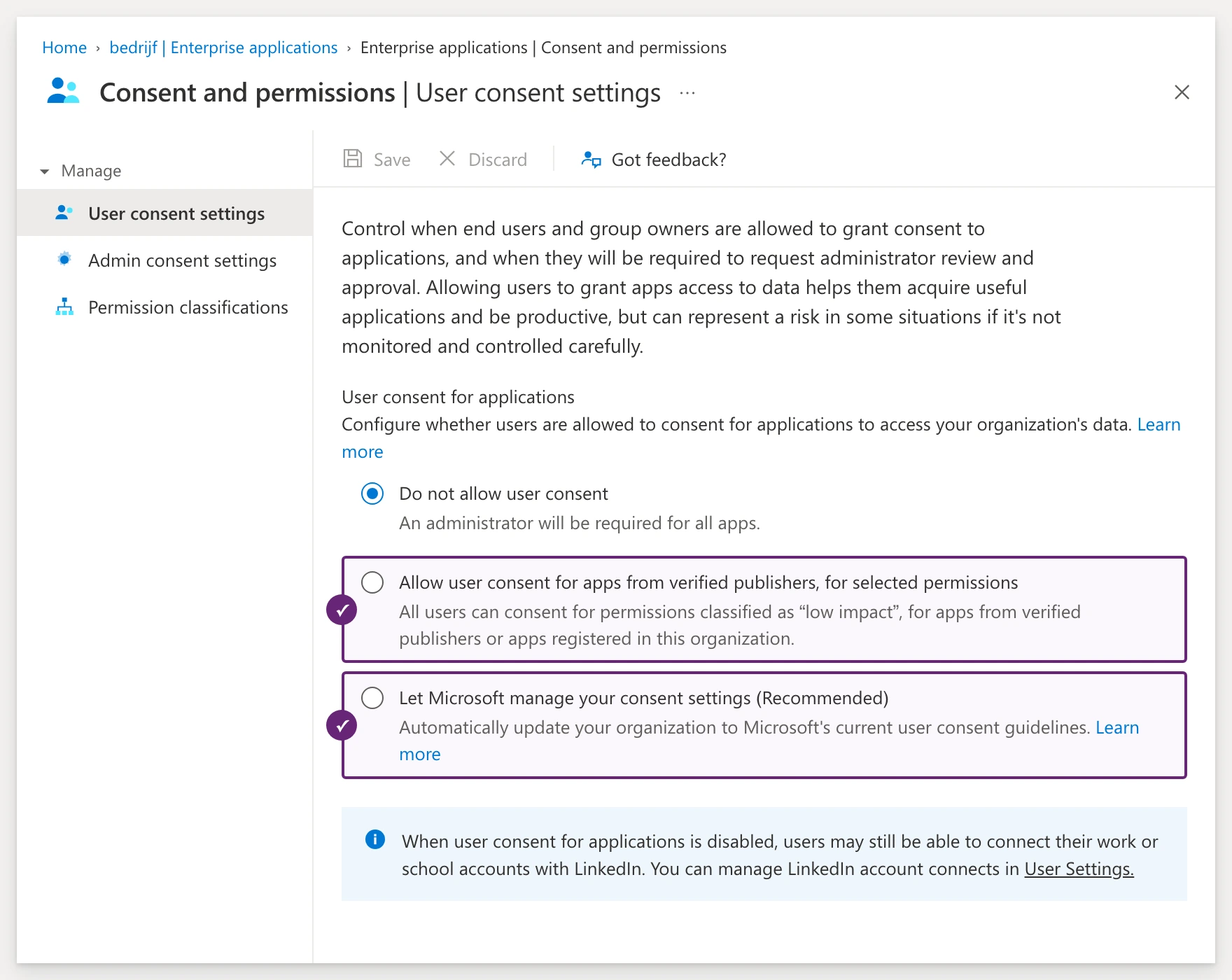
With the verified publishers option, Calendars.ReadWrite is not always considered “limited impact”. If users still see the approval screen afterward, add that right to the selected permissions or use route 1.
Enable request process for users
This allows users to cleanly request approval instead of hitting a dead end screen. You decide who receives the requests.
Verify that it worked
- In the Entra admin center, open Enterprise Applications, search for Claritalk and go to Permissions. The four calendar permissions are now listed under administrator consent.
- The user sees the status Connected in Claritalk under Profile › Marketplace for Microsoft Outlook 365 Calendar.
- Within a few minutes, the next calendar items will appear in Claritalk. Only items from the connected calendar will be fetched.
The consent is one-time. New employees can then connect without IT involvement. Claritalk will only request consent again if a new permission is ever added — you'll see that explicitly on the consent screen.
Is it still not working?
Consent is set up correctly, but the connection still fails? Then the cause is usually one of these points.
| What you see | What to check |
|---|---|
| “You are not authorized to use this application” AADSTS50105 | The app has Assignment required set to Yes. Add the user or a group under Enterprise Applications › Claritalk › Users and Groups. |
| The approval screen keeps appearing after approval | Consent was granted in a different tenant than the user's, or not with the “on behalf of your organization” checkbox. Run route 1 again and pay attention to that checkbox. |
| Sign-in is blocked or interrupted | A conditional access policy (MFA, managed device, IP range) is blocking the sign-in. Check the related sign-in log in Entra ID. |
| Users cannot connect any app | Under Enterprise Applications › User Settings, the ability for users to use apps is completely turned off. |
| An external or guest user gets the notification | Guest accounts don't inherit consent from their own organization. Have the connection done with an account from your tenant. |
Privacy and revocation
- Claritalk uses only delegated permissions. In Claritalk, you only see what you already see in your own Outlook calendar.
- Access and refresh tokens are stored encrypted and are never shared with third parties.
- A user revokes their own connection via Profile › Marketplace in Claritalk, or via myapps.microsoft.com.
- An administrator revokes consent for the entire organization via Enterprise Applications › Claritalk › Permissions.
Ready-to-send email for your IT department
Copy the text below and send it to your IT contact. Simply fill in your own name and the link to this article.
Subject: approval needed for Claritalk (Microsoft 365 calendar integration)

Hi

I want to connect my Microsoft 365 calendar to Claritalk, the tool we use to prepare and summarize conversations. When I try to connect, I get a message from Microsoft saying administrator approval is needed. This is because of our tenant's consent setting, not a problem with the tool.

Claritalk requests the following delegated permissions, and nothing beyond:
- User.Read: name, email address and time zone of the logged-in user
- Calendars.ReadWrite: read calendar items to prepare conversations, and create or update items scheduled from Claritalk
- offline_access: keep the connection active without having to sign in every day
- openid: securely link the Microsoft identity to the Claritalk account

No access is requested to SharePoint, OneDrive, Teams chats or the organization's user directory. These are delegated permissions, so the tool never sees more than I can see myself.

Quickest solution: Sign in to Claritalk with your administrator account, open https://app.claritalk.com/user/profile?setting=marketplace&search=outlook, click connect for "Microsoft Outlook 365 Calendar" and check "Consent on behalf of your organization" on the Microsoft screen. This is a one-time action and applies to all colleagues afterward.

Prefer to approve without logging into Claritalk? You can also do it via this URL, with your tenant ID in the place between the braces:
https://login.microsoftonline.com/{tenant-id}/adminconsent?client_id=551a3abc-65d8-4c22-a308-88f05a4c12bb

The full article with all steps and alternatives is here: [link to this article]

Thank you
[your name]