≈ 3 min read
Usage
Share a conversation with a customer
With Claritalk you send the report of a conversation directly by e-mail to your customer. You choose which report the customer receives and which sections you include. Via the preview you check in advance exactly what the customer will see.
How to share a conversation
-
Open the conversation
Go to Conversations and open the conversation you want to share. You will arrive at the report page of the conversation. At the top right, next to the title, there is a row of action buttons. The second button is the envelope.
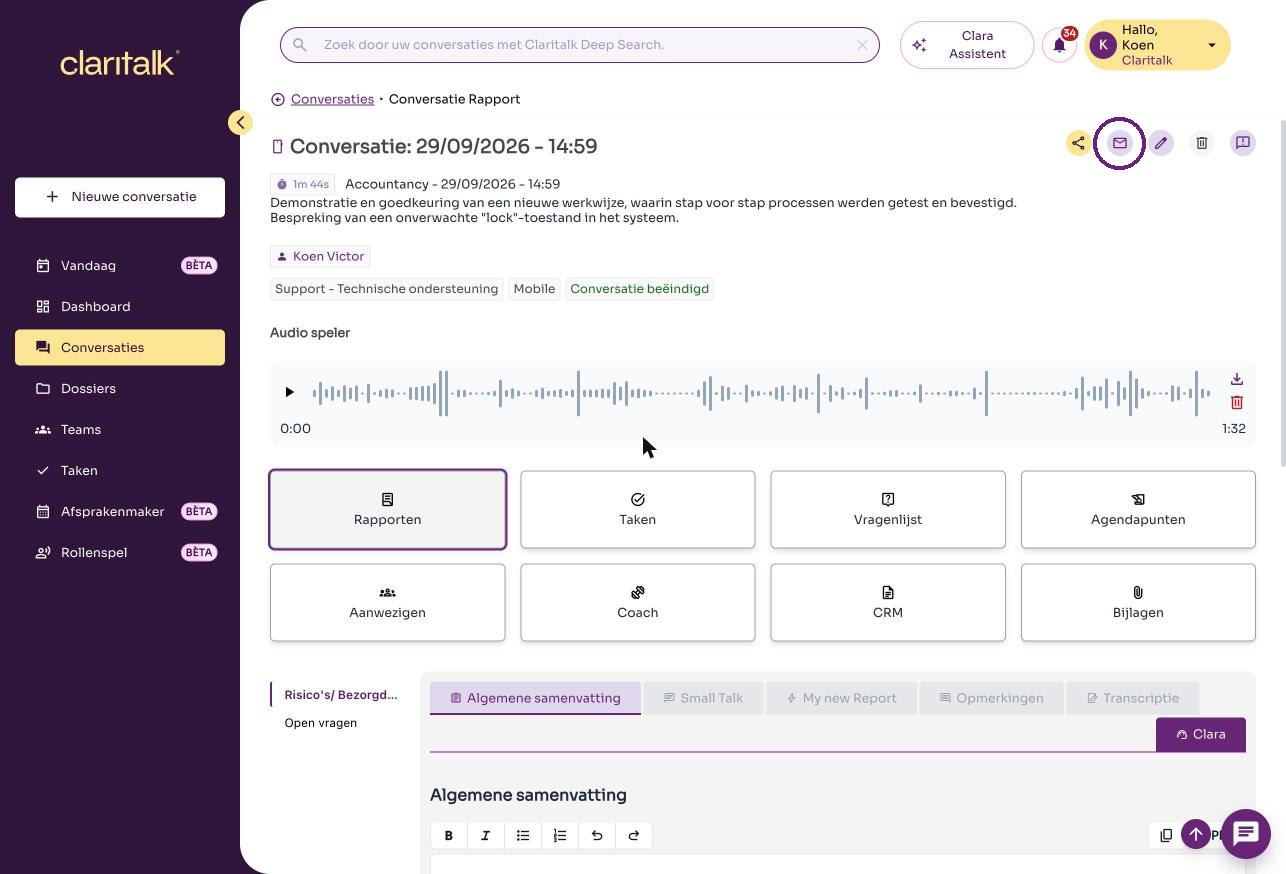
The report page of a conversation. The envelope is circled. -
Click on the envelope
Click on the envelope. The Share report via e-mail window opens. At the top you see under Shared links how many links for this conversation have already been shared.

The action buttons: share, e-mail (envelope), edit, delete, report. 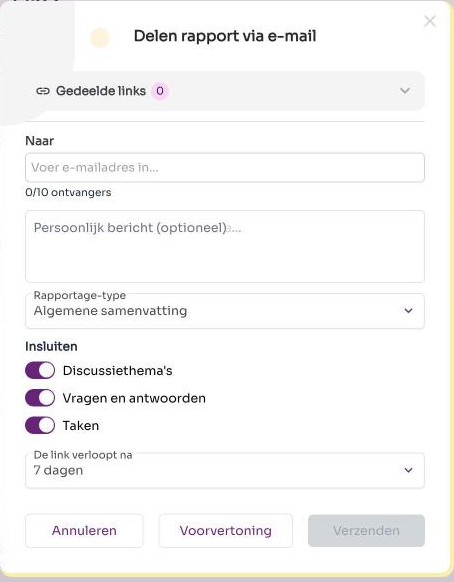
-
Enter the customer's e-mail address
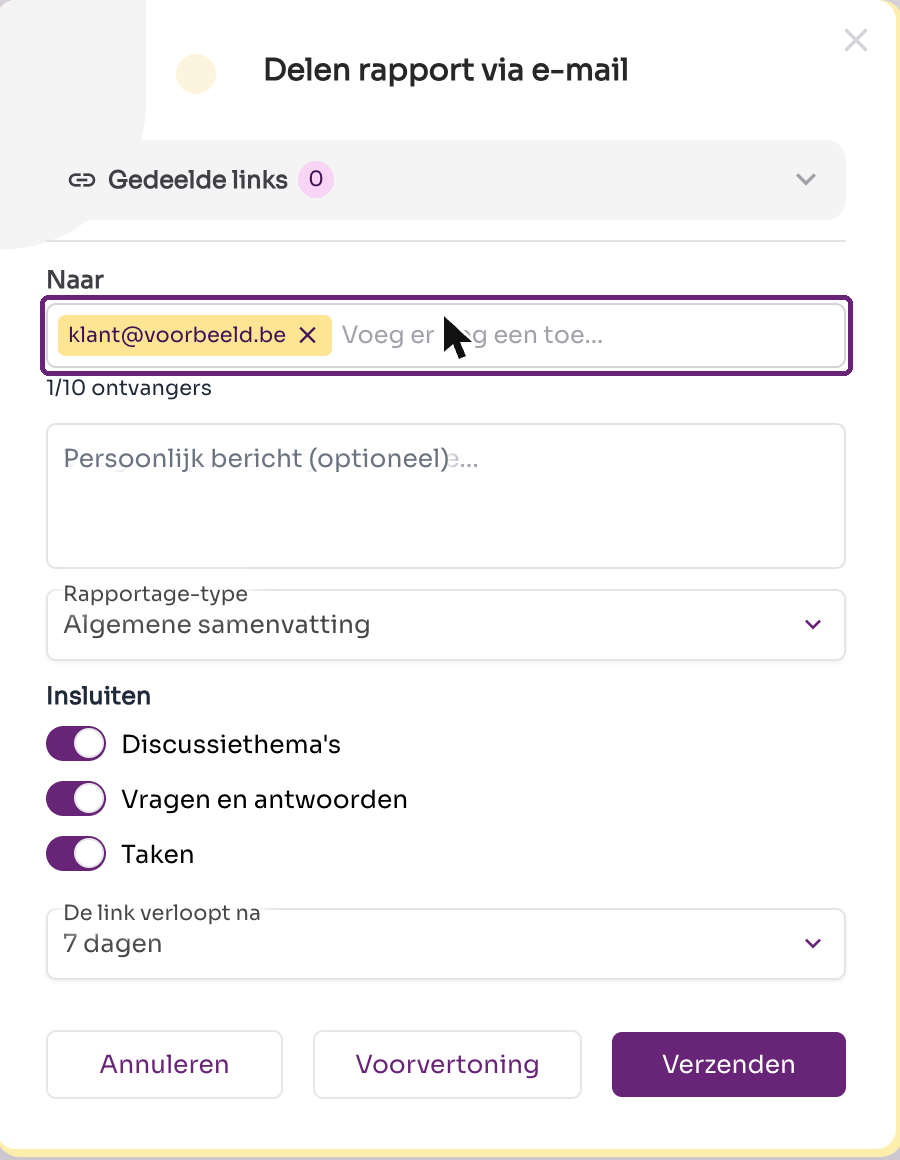
Type the customer's e-mail address in the To field and confirm with Enter. The address appears as a yellow tag. You can add up to ten recipients. Remove an address by clicking the cross next to the tag.
Below the address field you can optionally add a personal message. That message will be included in the e-mail to the customer.
-
Select the report you want to send
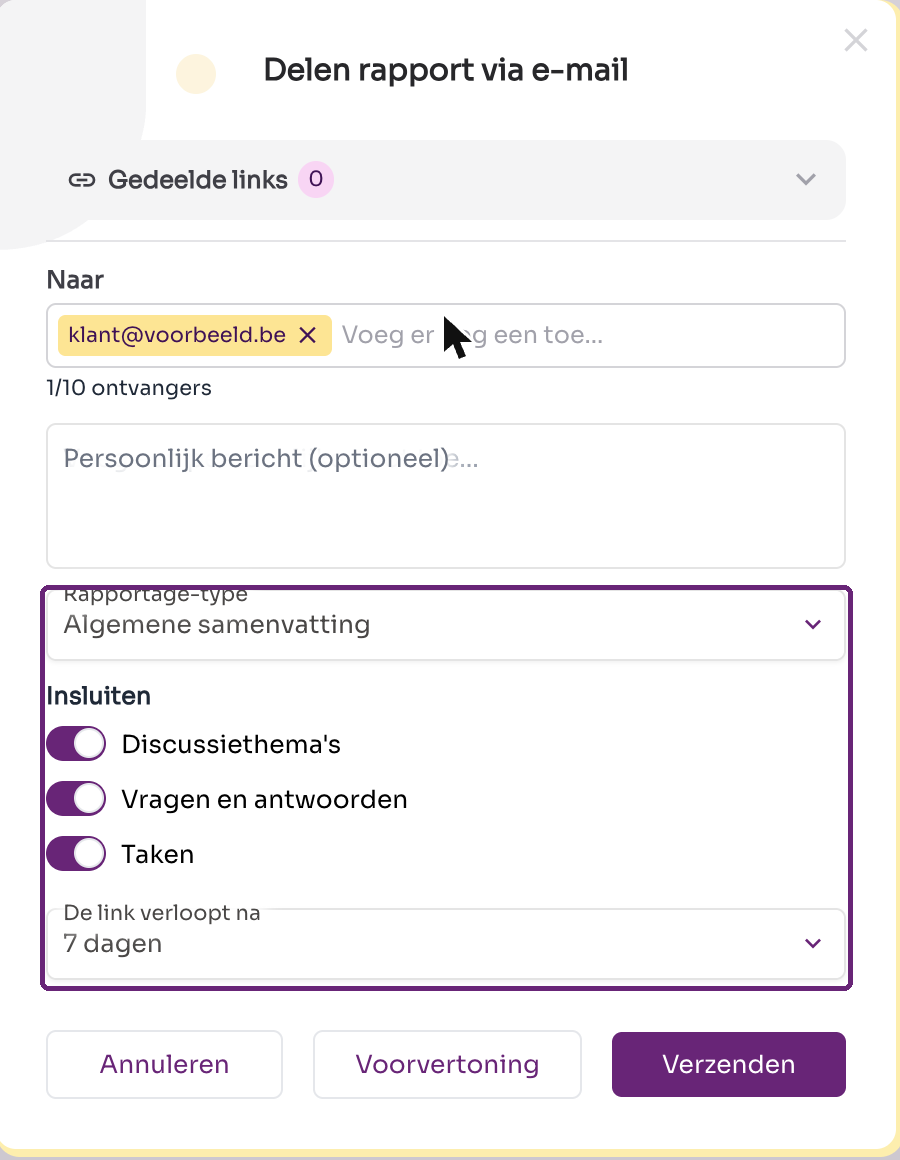
Choose at Report type which report the customer receives. The list shows the reports available for this conversation, for example the general summary or a custom report template.
Determine under Include which sections you want to send:
- Discussion topics – the discussed subjects.
- Questions and answers – the questions that were discussed with their answers.
- Tasks – the action items from the conversation.
Finally, set at The link expires after how long the customer has access. The default is seven days.
-
View the preview
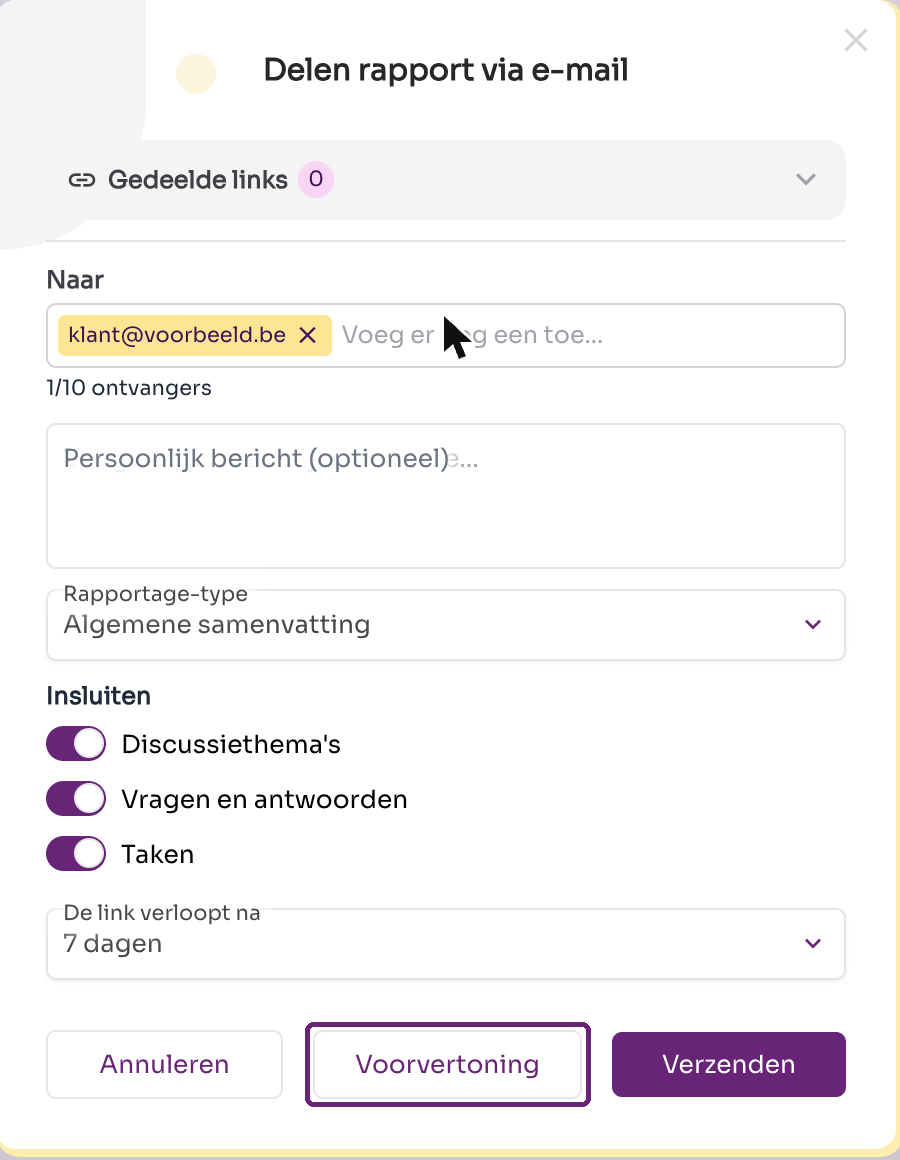
Click Preview to see in advance what the customer receives. The preview opens in a new tab and shows the report exactly as the customer will see it: the summary, the included sections and the expiration date of the link.
Is the result not correct yet? Then adjust the settings in the panel and view the preview again.
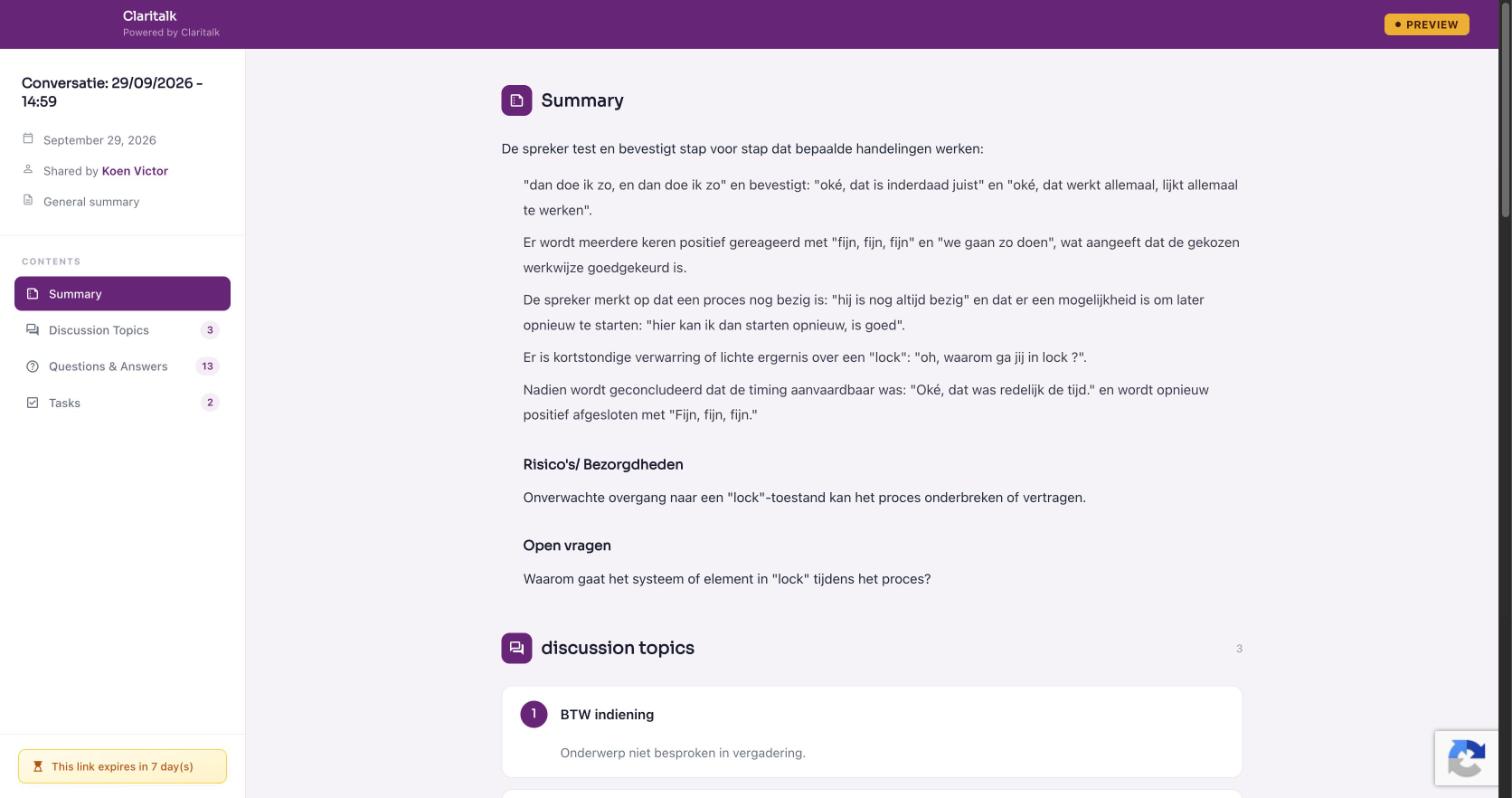
The preview: what the customer will see after opening the link. -
Send the report
Click Send. The customer receives an e-mail with a secure link to the report. After the chosen validity period, the link expires automatically. All sent links can be found under Shared links at the top of the panel.
Good to know
Check the e-mail address before you send: a report may contain sensitive conversation information.
- You can share the same conversation multiple times, for example with a different report type or shorter validity.
- With Cancel you close the window without sending anything.