
≈ 5 min read
Troubleshooting
No sound when using a Jabra headset
A Jabra headset often appears in Windows multiple times: as a USB device (via the Jabra Link dongle or cable) and as a Bluetooth device, sometimes even with separate listings for listening and speaking. If the wrong connection or the wrong microphone is selected, you won't hear anything or no usable sound will come in. Here's how to set it up correctly.
Why your Jabra appears multiple times in the list
Windows displays a separate audio device for each connection, and Claritalk can only listen to the device you select. With Jabra, these variants often appear together:
| Listing in Windows | What it is | Should you choose this? |
|---|---|---|
| Jabra Link 380 / 390 (USB) | The USB dongle that came with your headset. The most stable connection, with both microphone and audio. | Yes, preferably this one. |
| … Hands-Free / AG Audio (Bluetooth) | The Bluetooth call connection from your PC itself. Contains the microphone, but with lower audio quality. | Only if you're not using a dongle or cable. |
| … Stereo (Bluetooth) | The Bluetooth music connection. Sounds good, but has no microphone. | Never as a microphone: no audio comes through this way. |
The classic pitfall: your headset is connected via Bluetooth, Windows chooses the stereo variant, and no speech is picked up. Or the other way around: the microphone is set correctly, but the playback device is still set to your laptop speakers, so you don't hear anything.
Update the headset with Jabra Direct
Outdated firmware on the headset or dongle is a common cause of choppy or dropping audio. Update it first: Jabra provides the Jabra Direct program free of charge for this purpose.
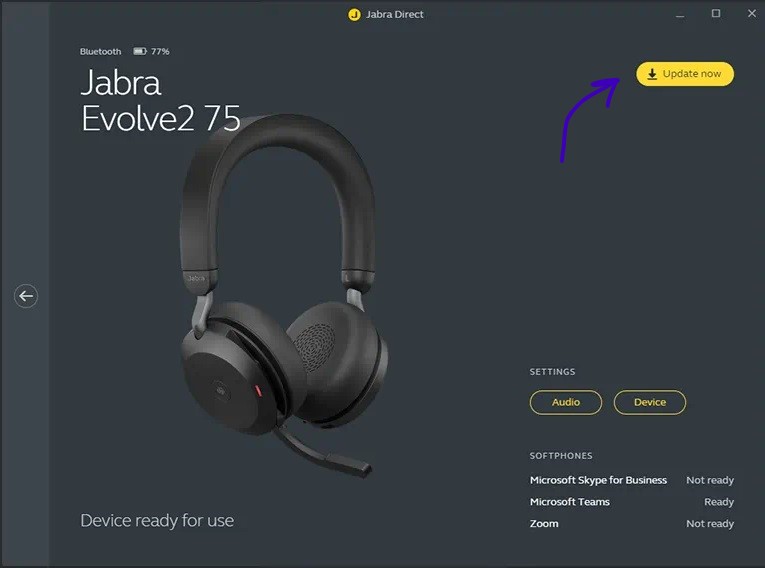
- Download Jabra Direct via jabra.com › Jabra Direct and install it.
- Connect your headset (and dongle); Jabra Direct will then show whether a firmware update is available for the headset and for the Jabra Link dongle. Install both.
- You can also use Jabra Direct to re-pair the headset with the dongle if the connection is lost.
Also update the audio drivers on your PC; you can read how to do this in Update audio drivers.
The notification in Claritalk: first select the correct microphone
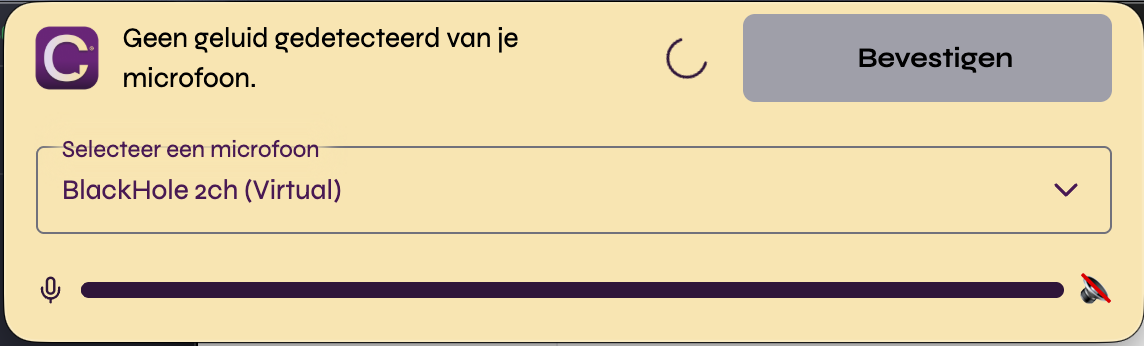
Claritalk checks at the start of a meeting whether audio is being picked up from your microphone, and alerts you if something seems to be wrong:
-
Select the microphone you actually use from the dropdown list. For a Jabra, this is the listing with the dongle (e.g. Jabra Link 380) or the Hands-Free variant, never the Stereo variant.
-
Say a few words and check if the audio bar moves. If it does, you're good.
-
Only then click Confirm. Also check that your headset is on, charged, and not muted: many Jabra models mute the microphone as soon as you fold the microphone arm up.
If you click Confirm while no audio is coming in, the meeting will still proceed, but nothing can be processed afterwards: without audio, no transcript can be created.
Not hearing anything? Also set the playback device correctly in Windows
If you don't hear any sound through the headset yourself (e.g. from your conversation partners or when playing a recording), the playback device is set incorrectly:
-
Open the sound settings. Right-click on the speaker icon in the taskbar and select Sound settings.
-
Select your Jabra under Output. Select the listing via the dongle or cable; for Bluetooth, the Stereo variant is fine here.
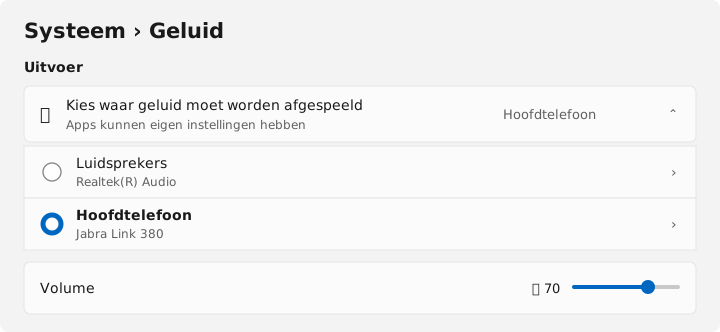
Under Output, select your Jabra instead of the built-in speakers (simulated view of Windows 11 sound settings). -
Select the same Jabra connection under Input as your microphone. Speak and check if the volume bar in Windows moves.
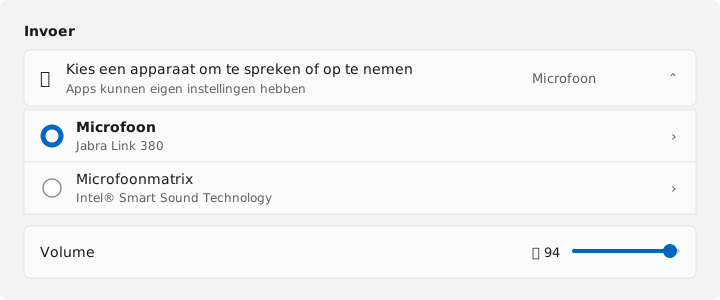
Under Input, select your Jabra's microphone, not the built-in laptop microphone (simulated view of Windows 11 sound settings). -
Check the volume on the headset itself. Jabra headsets have their own volume and mute buttons that are separate from Windows.
Using the headset in Teams or another meeting program as well? Then also check which device is selected there: those programs remember their own choice.
After that: test it
- Restart Claritalk Connect, so it re-reads the audio devices.
- Start a short test meeting, select the Jabra as your microphone, and check if the audio bar moves while you speak.
- Pulled the dongle out or switched USB ports? Then check the device selection again: Windows sometimes switches back to the laptop microphone.
Email support@claritalk.com with the model of your Jabra headset, how it's connected (dongle, cable, or Bluetooth), and whether the problem also occurs outside Claritalk, for example in Teams. We'd be happy to look into it with you.