
≈ 2 min read
Integration
Connection with FID-Manager
With the FID-Manager connection, the PDF of each meeting is automatically added to the correct contact. You only need to complete these steps once.
Step 1 — In FID-Manager
Open the document parameters
Go to Documents / Document parameters.
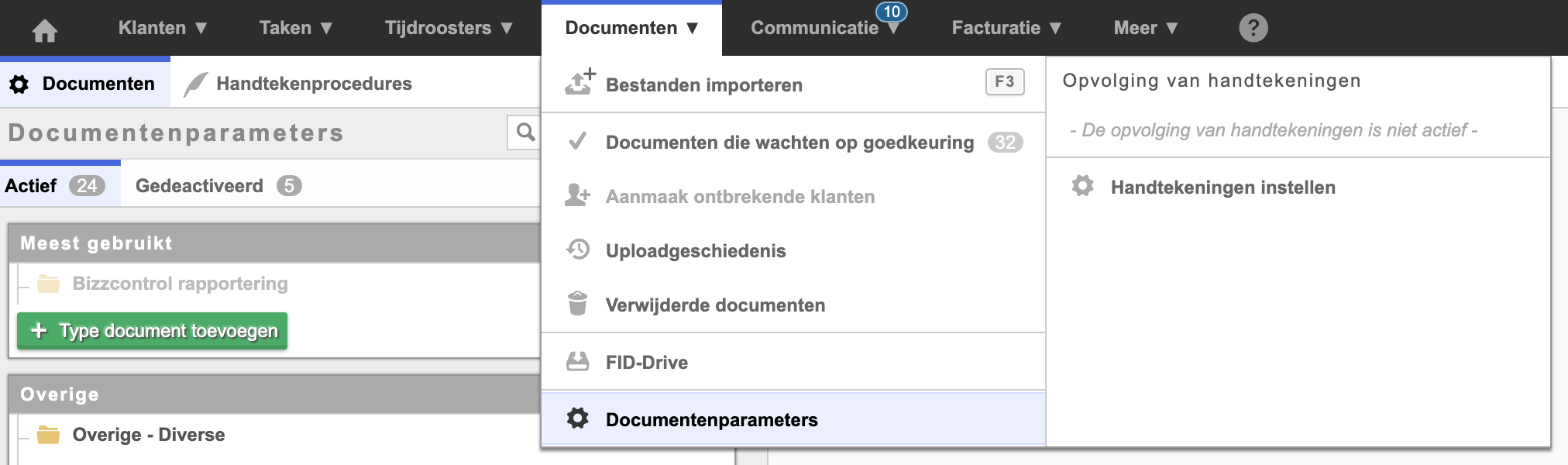
Documents › Document parameters in FID-Manager Add a new document type
Click on Add document type.
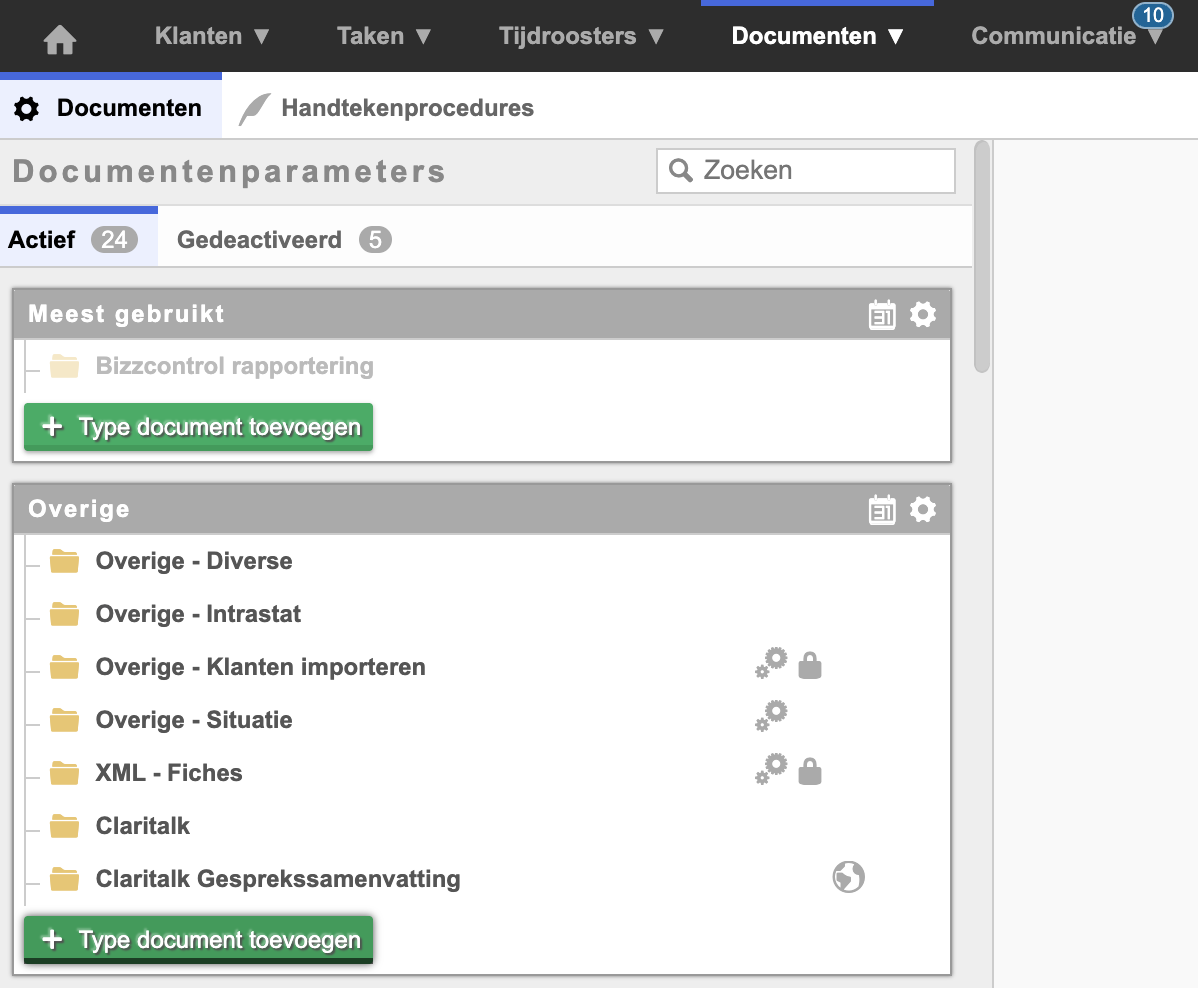
Add document type Enter: Claritalk Summary.
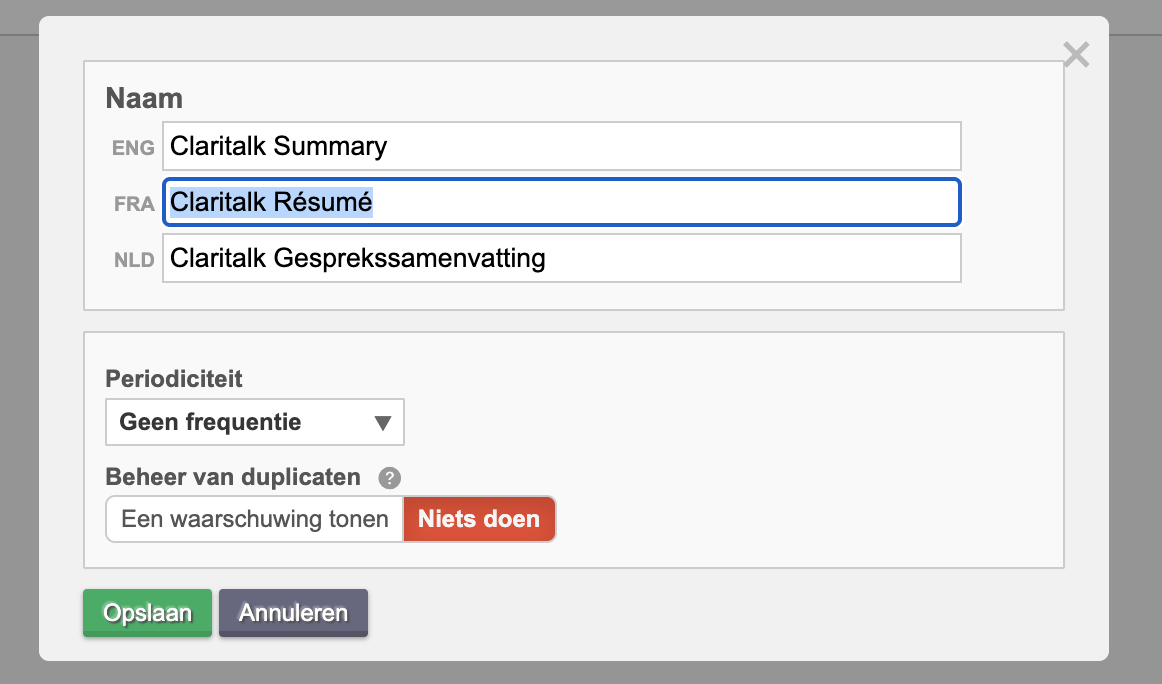
Enter document type “Claritalk Summary” Make the document type available to the API
Click on “Parameters for external software access (API)” and then click on Claritalk.
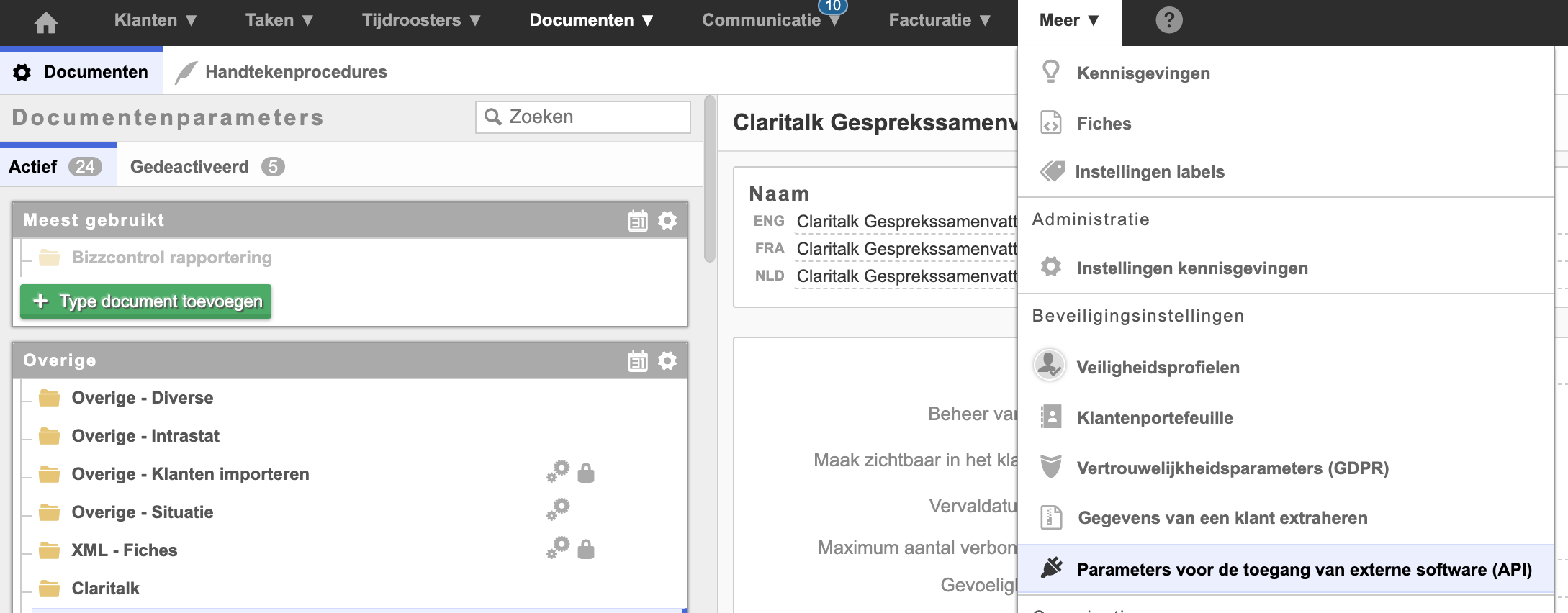
Activate API access for Claritalk You will receive an email with the access codes.
Enter the partner code
Click on “Document authorizations” / Other and enter CLARI for Claritalk.
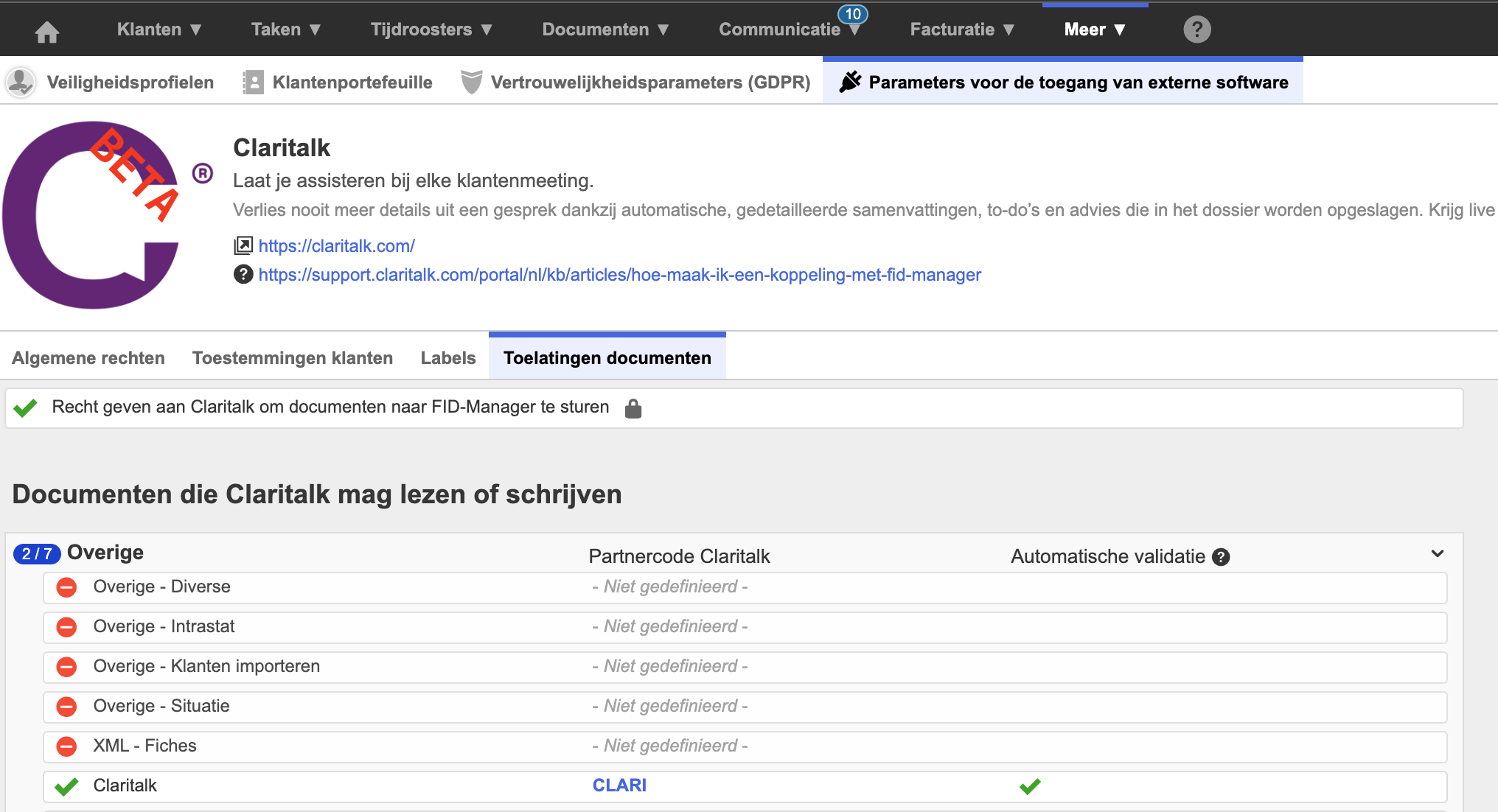
Enter partner code CLARI in Document authorizations
The password that FID-Manager sends is one password per company and must be used by everyone. Share it with other users who need FID-Manager access. With each new request, FID deletes the previous password.
Step 2 — In Claritalk
Open the marketplace
Go to app.claritalk.com › profile › marketplace and click on FID-Manager.
Enter the access codes
Use the codes from the email from FID-Manager.
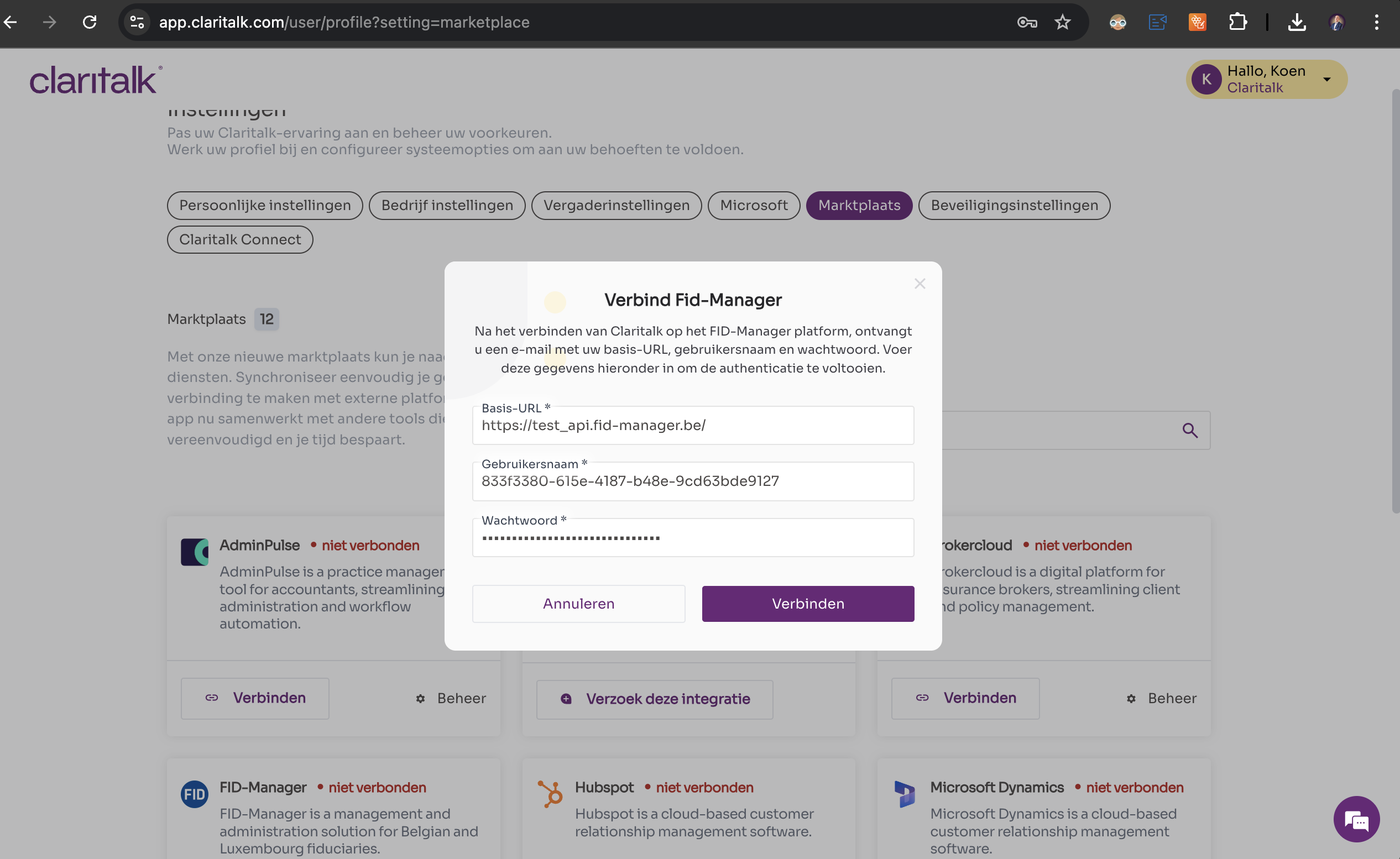
Enter access codes in Claritalk Enter the partner code
Click on Configuration and enter the partner code CLARI.
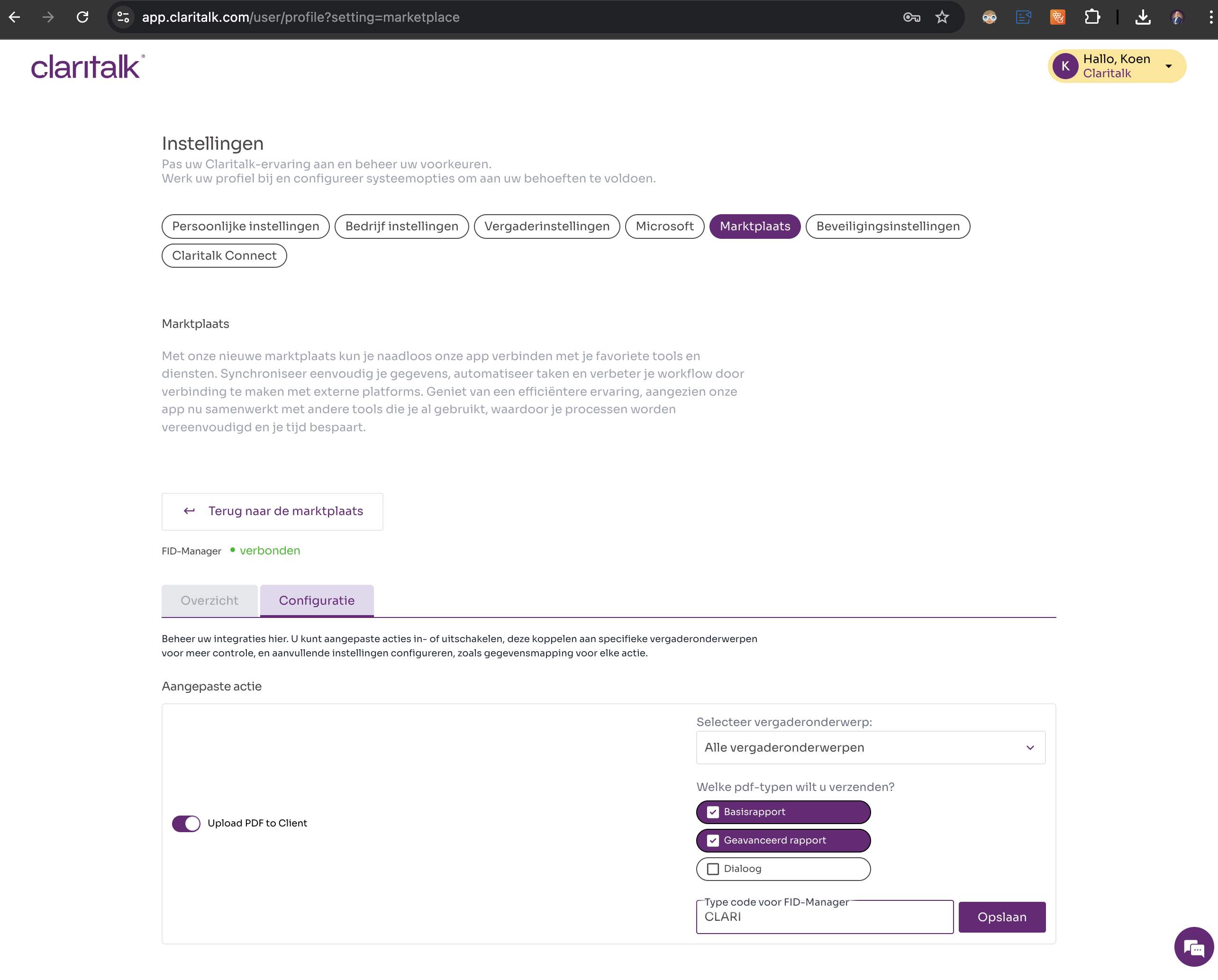
Enter partner code CLARI in the configuration
The result
When starting a meeting, you can now select the contact you are meeting with. After the meeting, the PDF of the meeting is automatically added to that contact. Good luck!