≈ 2 min read
Settings
Allow microphone access
Claritalk needs access to the microphone to be able to transcribe meetings. Below you can read how to grant that access on your own PC, and how system administrators can manage this centrally via Microsoft Intune.
On your own PC
Open Windows Settings
In Windows 11, go to Settings and open the Privacy & Security section.
Grant desktop apps access to the microphone
Enable the setting to allow desktop apps to access the microphone. Without this setting, Claritalk cannot use the microphone.
Via Microsoft Intune
This section is for system administrators who centrally manage the settings of Windows devices on the network. Here too, you need to grant desktop apps access to the microphone.
Open the Settings Catalog
In the privacy category of the Settings Catalog, you will find the setting “Let Apps Access Microphone”.
Allow microphone access
Choose Force allow so that all apps have microphone permission enabled.
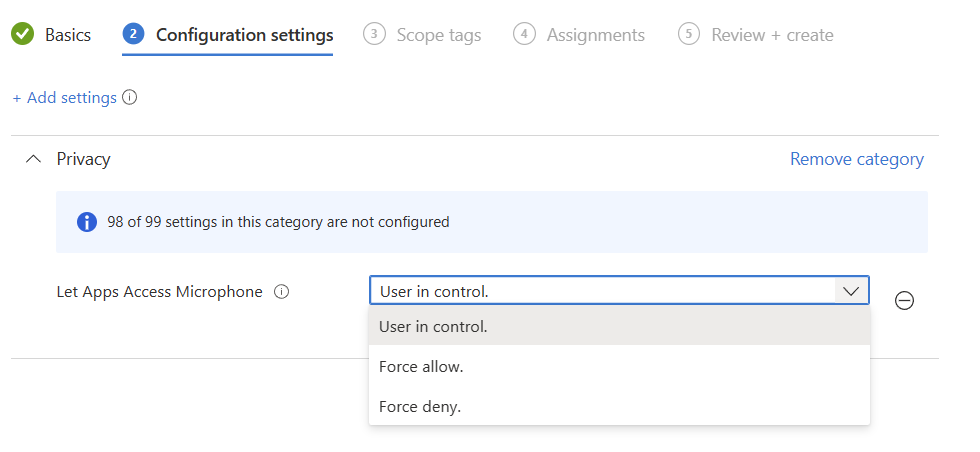
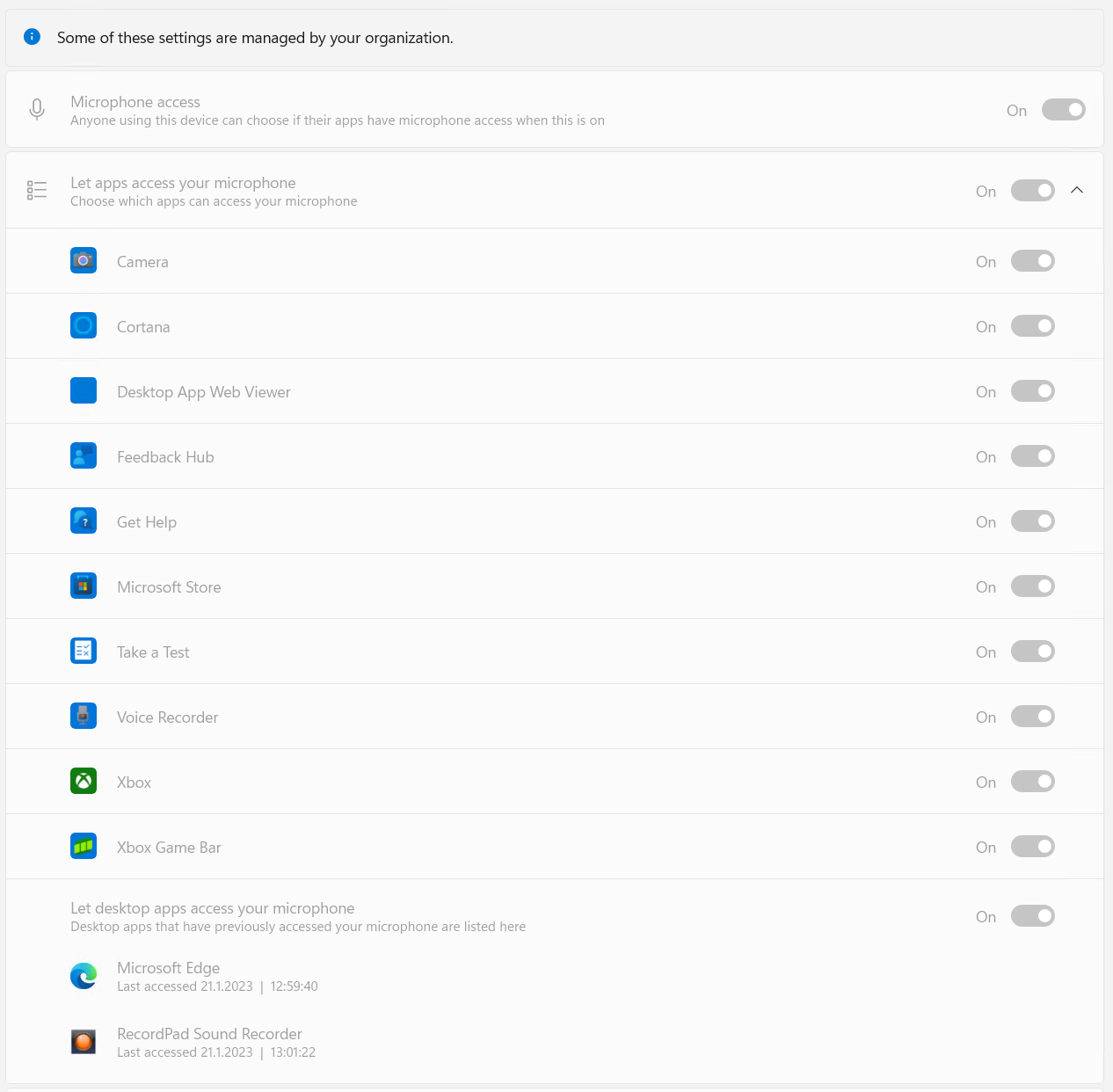
The options are largely self-explanatory, but “force allow” or “deny” applies to all apps, both Win32 and Store. At the time of writing, it is not possible to grant access to specific Win32 apps (such as Claritalk Connect or Microsoft Edge) without granting the same right to other applications. In our opinion, this security feature is not yet sufficiently developed by Microsoft.
More information
- More about settings via Microsoft Intune: Microsoft Learn — per-app privacy exceptions.
- Based on: sysmansquad.com — microphone app permissions.