
≈ 4 min read
Usage
Customize your reports with your own prompt in Clara
With Clara, the personalization feature within Claritalk, you write your own prompt that determines how your reports look. This way, you get exactly the report that fits your work.
What is a custom prompt for?
A custom prompt helps when you recognize one of these questions:
- Are the reports too long for your purpose?
- Are the things you're looking for not in there?
- Do you want to give your report its own structure?
- Do you want to set up a report email template after the conversation?
You can ask to be brief or to focus on specific topics. Through built-in macros, you can also use the name of your company or yourself in the prompt.
How to create your own prompt
-
Open Clara during a conversation. The easiest way: open an existing conversation and click on the Clara tab.
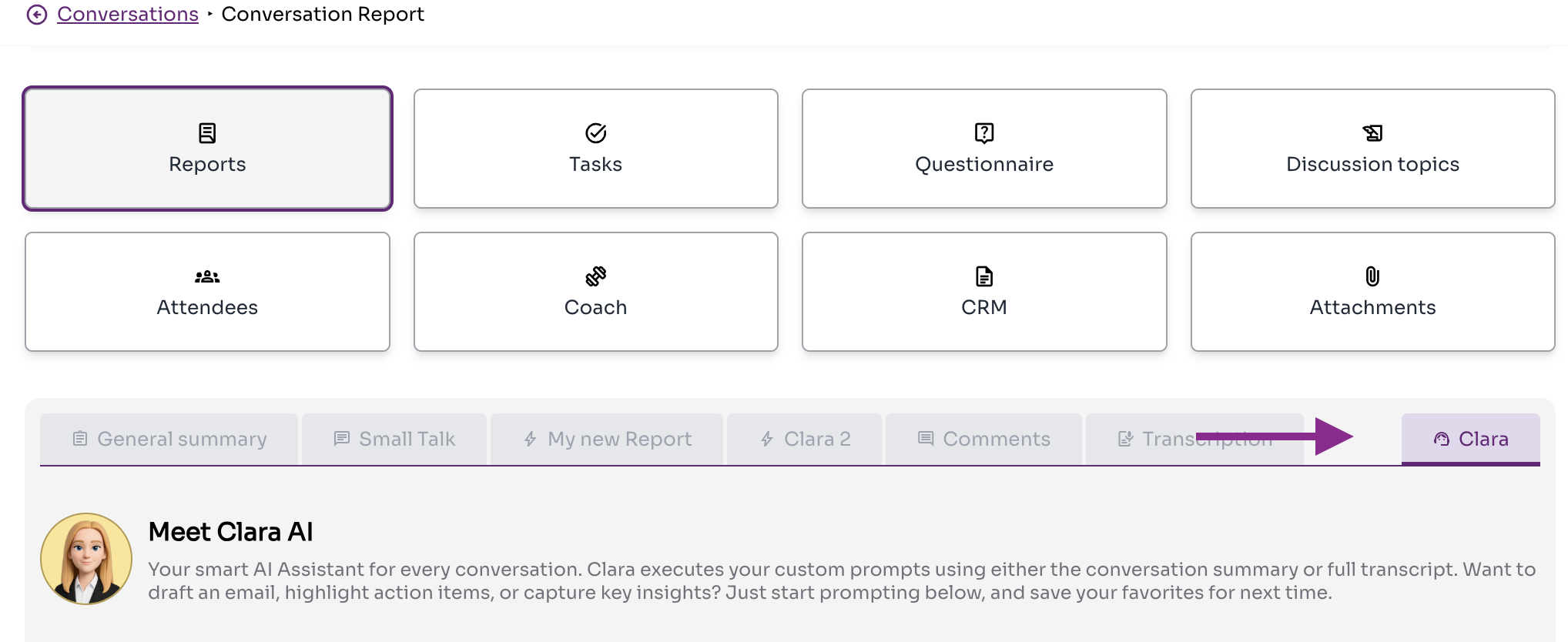
The Clara tab is located to the right of the other report tabs. -
Create your prompt. Click the + next to My prompts, give your report a name, and write your prompt.
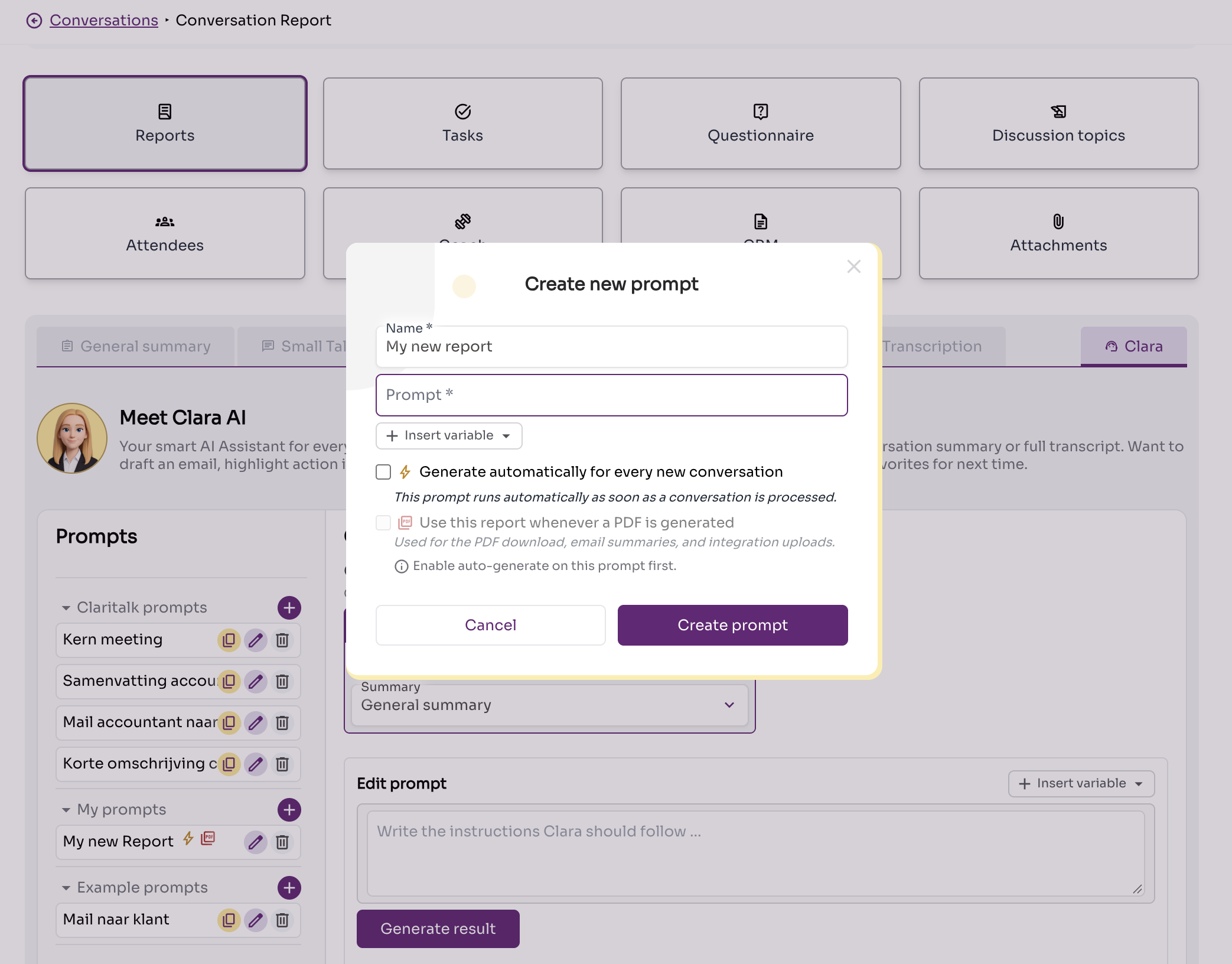
The Create new prompt window, with the prompt list on the left. -
Describe clearly what report you want. The more concrete your prompt, the more useful the result. A worked-out example is provided below.
-
Click Create prompt. Then open the Clara tab again, click on your new prompt, and select Generate result to test it on this conversation.
Example: report of an accounting conversation
This example shows what a detailed prompt looks like. Feel free to adopt it and adapt it to your own field.
Summarize the text of an accounting conversation. Only mention topics that were actually discussed and do not invent missing information.
Emphasize, where applicable:
- key financial figures, amounts, and booking periods;
- revenue, costs, margins, and cash flows;
- invoices, payments, and outstanding items;
- VAT, taxes, and tax returns;
- bookings, corrections, reconciliations, and discrepancies;
- balance sheet and income statement items;
- errors, risks, uncertainties, and missing data;
- agreements and decisions made;
- action items, including responsible party and deadline;
- outstanding questions.
Use this structure:
Core summary: maximum five sentences.
Key accounting points: clear list.
Decisions and agreements: state who decided what.
Action items: table with action, responsible party, deadline, and status.
Outstanding questions or risks.
Copy amounts, dates, and terms exactly. Clearly indicate when information is uncertain, incomplete, or contradictory.
Generate automatically
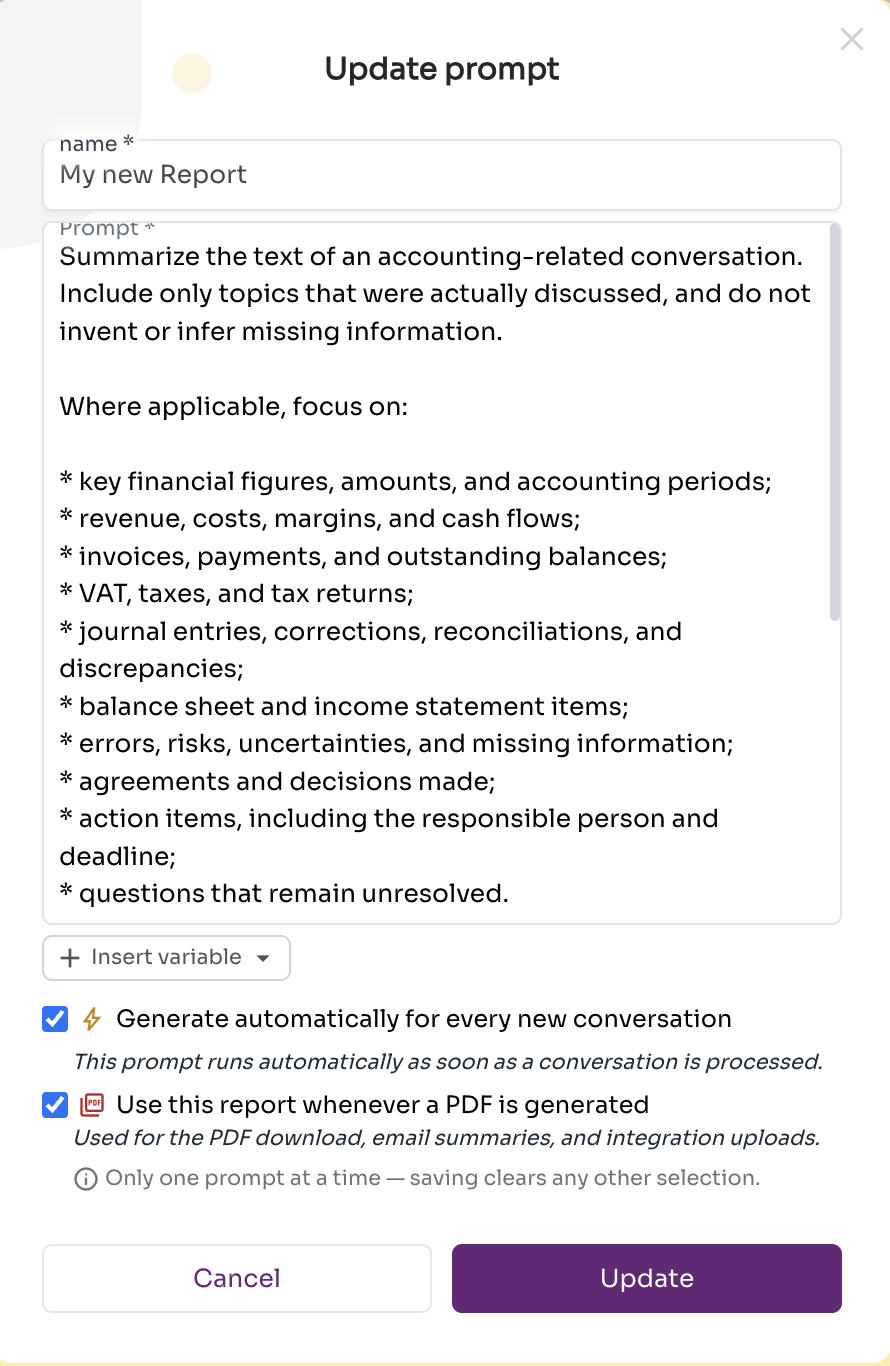
Do you want this report for every conversation from now on? Click the edit icon next to the prompt name and check Generate automatically for every new conversation.
Do you use a CRM integration and want this report to be sent to your CRM? Then also check Use this report for PDF generation.
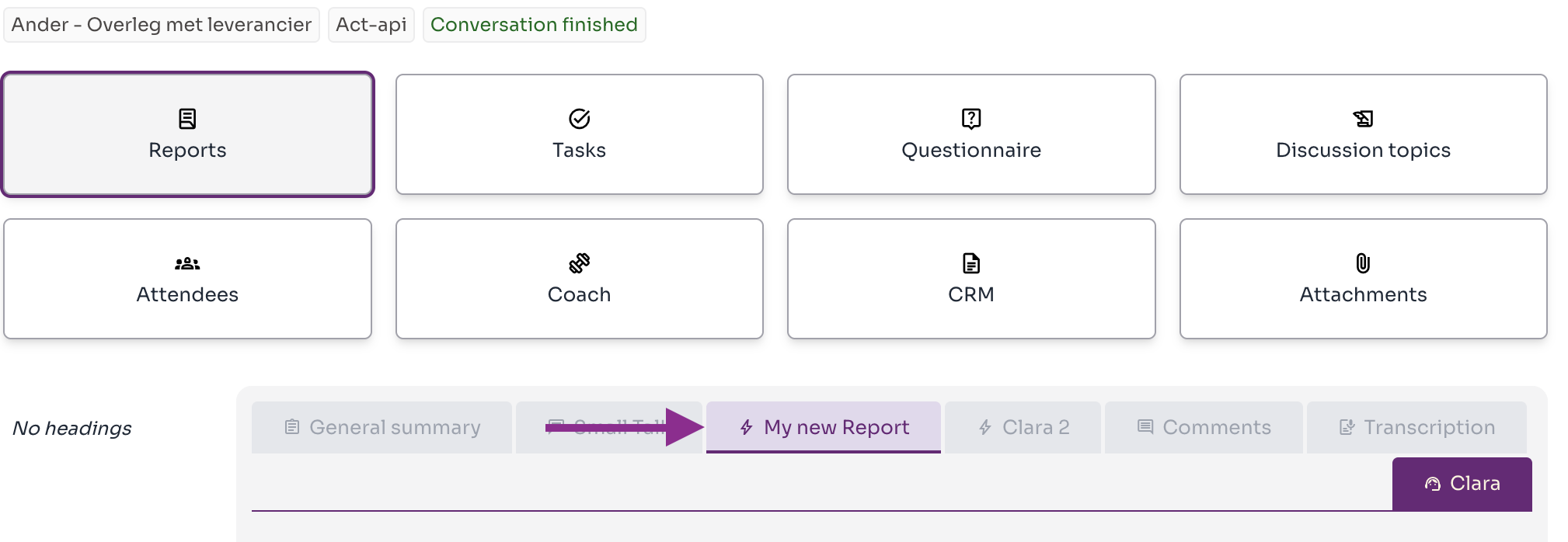
When automatic generation is enabled, the report appears as an extra tab to the right of the regular report.
Advanced: what context is your prompt applied to?
You choose the context to which Clara applies your prompt: the general summary or the full transcription.
| Context | Advantage | Limitation |
|---|---|---|
| General summary | Much noise is already filtered out, which often improves the result. | Details that have disappeared from the summary cannot be extracted anymore. |
| Full transcription | All details remain available. | More noise, which can make the result less sharp. |
Start with the general summary. Missing details in the result? Then switch to the full transcription.
A prompt for your entire organization
Are you an organization administrator and want to set up a prompt for everyone? Create the prompt in your company's prompt list, at the top of the prompt list. This way, all your colleagues use the same report structure.
Need help writing your prompt? Email support@claritalk.com, we're happy to think along.